Copy, edit, transform: work with individual blocks in Markdown
You have a paragraph that would work better as a step-by-step process. Or a card that needs a clearer explanation. You want to try a different approach without rebuilding the block by hand.
Slate v0.146.0-beta brings Markdown viewing and editing to individual blocks. Open a block's menu and choose View as Markdown to see the block as editable text in LESSON.md, Slate's open Markdown format for course content. Make changes there, or copy it into your own AI tool or text editor. Paste the revised block back into Slate and save.
You can update the wording, restructure the content, or transform it into another supported block type. The workflow is the same: copy, edit, paste, save.
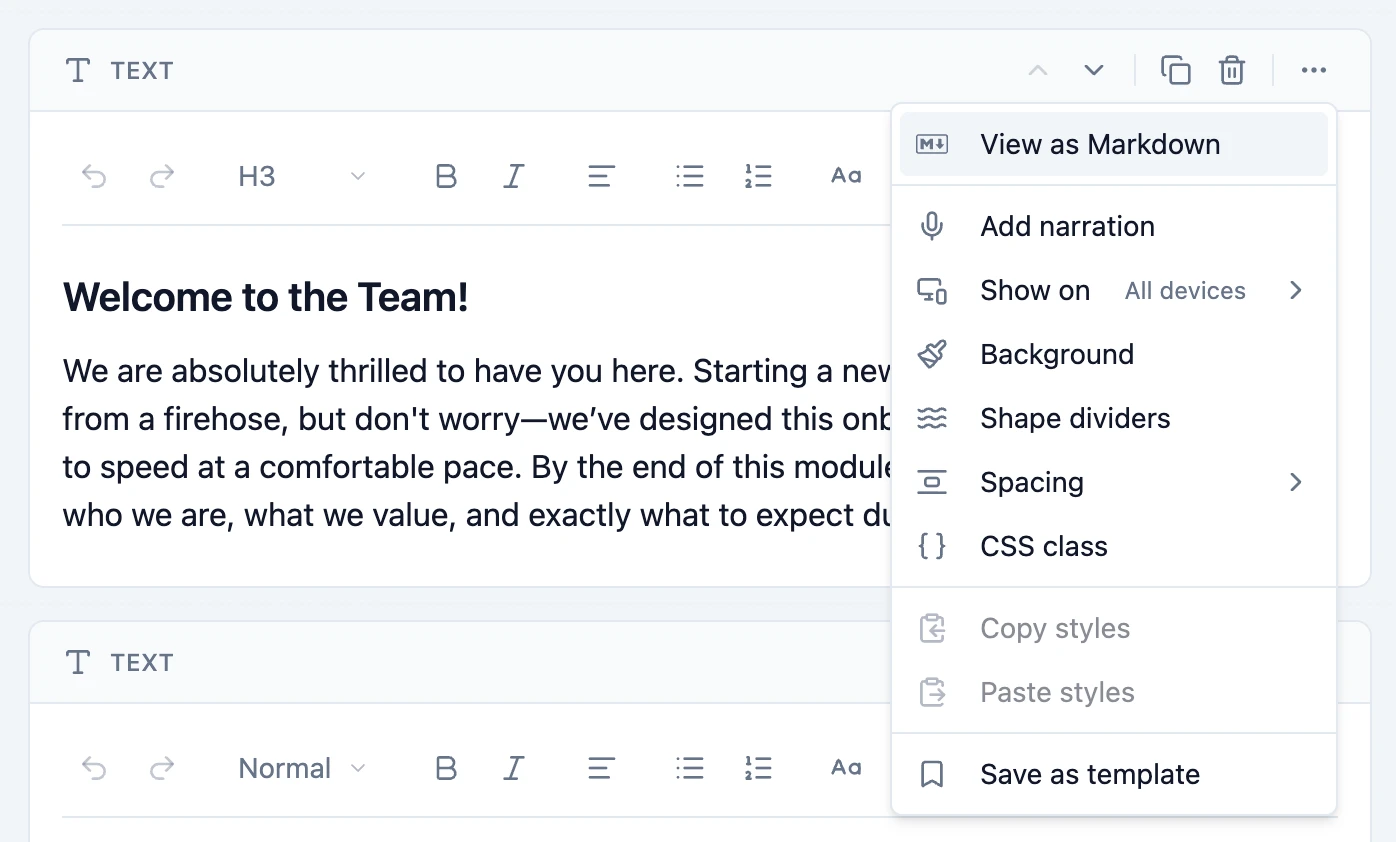
One block, ready to copy
In Copy lessons as Markdown, paste them back in, we showed how to copy an entire lesson, revise it in your own AI tool or text editor, and paste it back into Slate as a new lesson.
This release brings that same copy, edit, and paste workflow to one block at a time. If you only want to improve a question, rewrite a card, or turn a paragraph into a process, you can work on that block and save it in place within your existing lesson.
- Open the block menu and select View as Markdown. Course authors with editing access can start typing immediately.
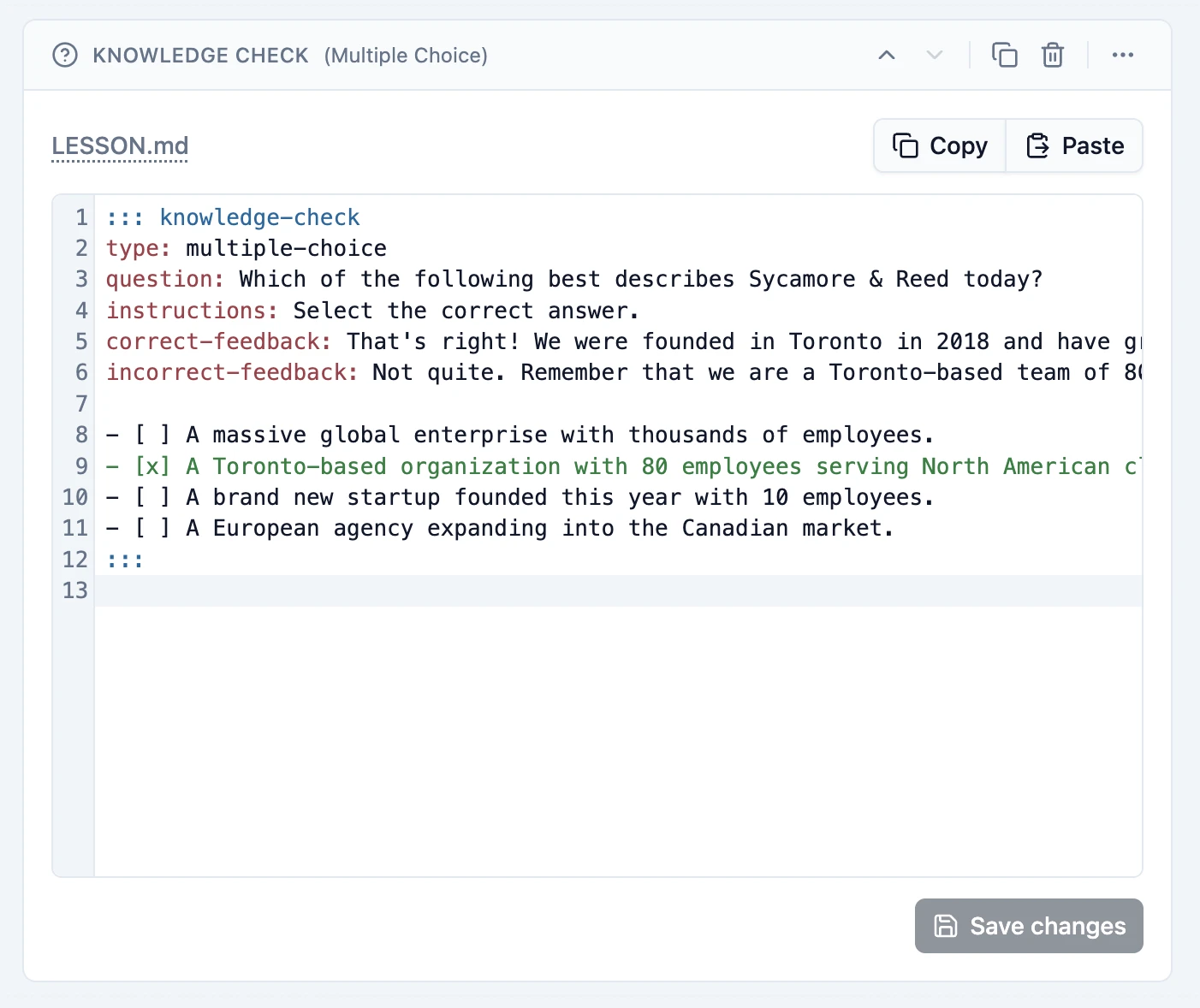
- Copy the block with the Copy button. The copy includes its content and the settings supported by LESSON.md.
- Revise it wherever you prefer. Use your own AI assistant, a plain text editor, or the Markdown editor inside Slate.
- Paste the replacement into the same block's Markdown editor using Paste or your keyboard. Paste the whole Markdown block, from the opening to the closing
:::lines. - Save your changes. Choose Save changes or press Cmd+S or Ctrl+S. Slate automatically checks that the Markdown follows the LESSON.md format before updating the block.
The replacement stays in the same position in your lesson. You can see the block again by choosing View as block in the block menu.
Turn a paragraph into a Process block
Here is a simple text block describing a support workflow:
::: text
When a support request arrives, identify what the person expected and what happened instead. Check their connection and account access. If the issue continues, record what you tried and escalate to the right team.
:::
Copy that block and give your AI assistant a focused instruction:
Convert this text block into one LESSON.md Process block with three steps. Use a vertical layout and the minimal style. Give each step a short title that starts with an action. Keep the original meaning and do not add new policy or troubleshooting steps. Return only the complete Markdown block, without extra backticks around it or an explanation.
If your assistant needs help with the format, share the LESSON.md reference or the free lesson-md skill. Check its response for accuracy before saving it in your course.
A replacement could look like this:
::: process
orientation: vertical
style: minimal

## Identify the issue
Ask what the person expected to happen and what happened instead.

## Check the basics
Check their connection and account access.

## Escalate with context
If the issue continues, record what you tried and escalate to the right team.
:::
Paste the complete Markdown block into the original block's Markdown editor. Slate tells you that saving will change the block from text to process. Choose Save changes, and the paragraph becomes a Process block in the same place.
This is more than a wording change: you are choosing a different way for learners to work through the information. The Process and Timeline blog post has more examples of these formats.
Use your own tools, or just type
Copy and paste lets you work with your preferred AI assistant. There is nothing to connect or set up: copy a block into your AI tool, then paste its response back into Slate.
You can also skip AI entirely. Shorten a sentence, change a card title, or reorganize a sequence directly in the Markdown editor. Line numbers and colour highlighting help you follow the Markdown in light or dark mode.
Try asking your assistant to:
- Tighten the copy: shorten a block while keeping its instructions and key terms.
- Change the tone: rewrite an explanation for a particular audience without adding facts.
- Restructure the content: turn a text block describing a procedure into a Process block, or a short explanation into a Card block.
Ask for one complete LESSON.md block each time. Changing a block type means using that type's structure, so ask the assistant to convert the content as well as the block type.
What to know before saving
Slate checks the Markdown before saving. If something is missing, the format is not supported, or you paste more than one block, a message in the editor explains what needs fixing.
You can use this with all block types available in LESSON.md. Code blocks already let you copy and paste their code directly, so they do not use this LESSON.md workflow.
If the block has narration or translations, Slate reminds you before saving that these will need updating for the revised content.
A small edit can become a better block
Start with one block you already have. Open its Markdown, try a clearer version or a different structure, and bring it back into the lesson. Your content can move between Slate and the tools you prefer through a simple copy and paste.