Copy lessons as Markdown, paste them back in
If you work with an AI chat app alongside Slate, two new features simplify the back-and-forth. Copy any lesson as Markdown in one click, share it with Claude, ChatGPT, Gemini, or any AI agent, get it revised, and paste it straight back in via single LESSON.md import. No file export, no converter, no intermediate step.
Copy as Markdown
The lesson editor's quick-actions button (the floating button in the bottom-right corner of the editor) now includes a Copy as Markdown action. Click it and Slate copies your lesson to the clipboard as Markdown, ready to paste anywhere. If you're working on an assessment lesson, it copies as ASSESSMENT.md instead. Either way, you'll see a brief confirmation telling you what was copied.
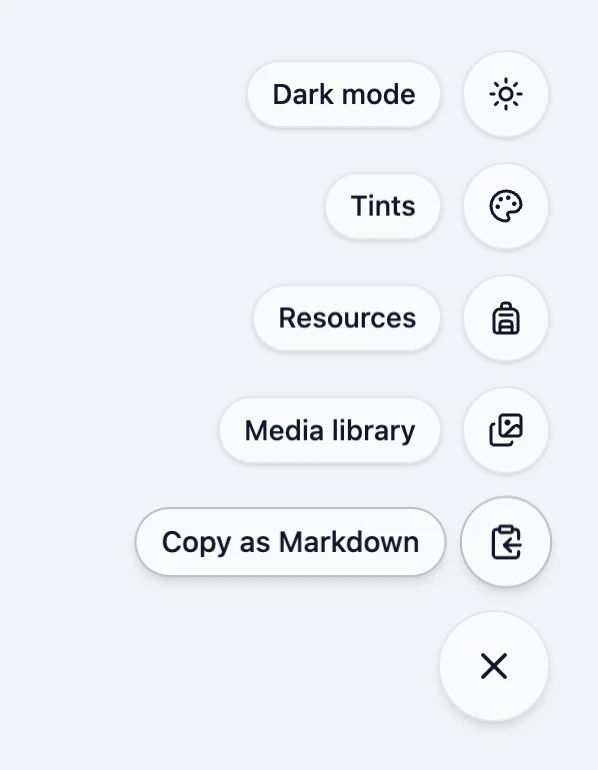
The output includes your full lesson: text converted to Markdown, your lesson title, and all supported block types including accordions, tabs, knowledge checks, labelled graphics, and layout grids. The one exception is code blocks (HTML/CSS/JS), which can't be represented in Markdown, so they're left as a note in the output so you know where they were.
Paste from clipboard
Single LESSON.md imports now let you bring in a lesson directly from your clipboard, alongside the existing file drop and browse options. Select Paste from clipboard and Slate validates the content automatically, showing you a preview before importing: how many blocks were found, and any issues to be aware of. Same result as uploading a file, just faster.
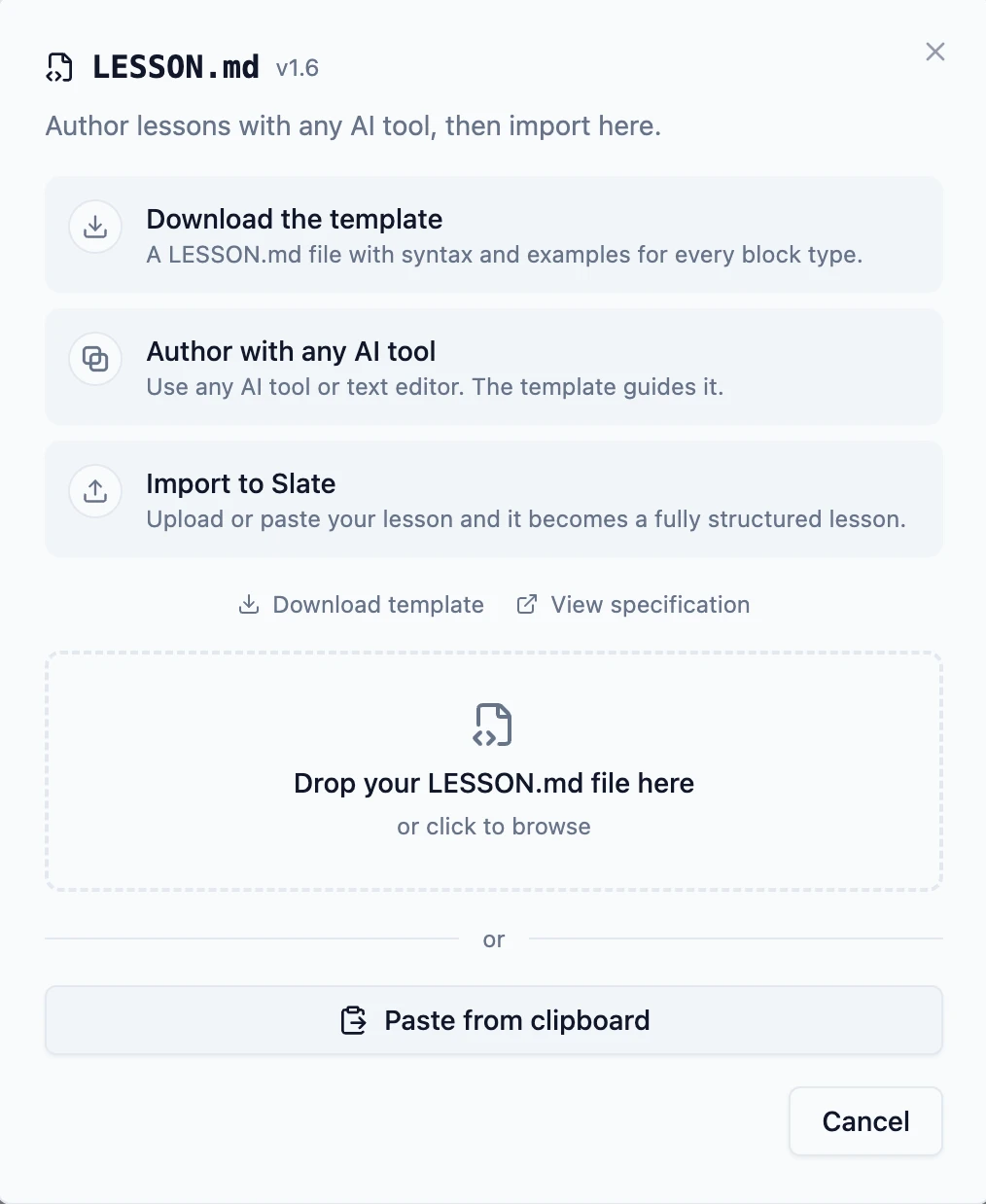
The workflow
Put the two together and the loop with an AI agent is four steps:
- Open a lesson in Slate and click Copy as Markdown from the quick-actions button.
- Paste the content into Claude, Gemini, ChatGPT, or whichever agent you prefer.
- Ask for what you want: a rewrite, tighter examples, an added knowledge check, a different structure.
- Paste it back into Slate via single LESSON.md import.
The revised lesson imports as a new lesson alongside the original, so you can compare them before deciding what to keep. Your original stays intact.
LESSON.md carries your lesson's content and structure: text, block types, knowledge checks, and layout. Block-level presentation (backgrounds, custom spacing, shape dividers, narration, device visibility controls, and custom text colours) lives in Slate's editor and doesn't travel with the copy. The loop is for iterating on content; once you're happy with the structure, apply any visual finishing touches in Slate.
The same loop works without an AI in the picture. Copy the lesson as Markdown, edit it directly in VS Code, Obsidian, Notion, or any text editor, and paste it back in. For course authors who prefer to draft or structure content in a text environment before polishing in Slate's editor, the handoff works cleanly in both directions.
About LESSON.md
New to Markdown? It's a plain-text format where a few symbols do the work: # makes a heading, - starts a list, ** bolds a word. Most AI chat apps write it naturally. More on writing eLearning in Markdown →
LESSON.md is the open Markdown format for eLearning content. It covers nearly every block Slate supports: accordions, tabs, labelled graphics, flip cards, knowledge checks, layout grids, and more. All in a plain-text file any editor or AI tool can read and write. The spec lives at lesson.md, alongside a browser-based converter, downloadable templates, and a free agent skill for authoring full course bundles from source content.
Copy as Markdown and clipboard paste are available on every Slate plan, including Free.