Import Rise Courses to Slate: A Complete Guide
At a glance
- SCORM is an open standard: Upload your Rise SCORM ZIP files (1.2 or 2004) and Slate converts the content into native, editable blocks.
- Content preserved: Sections, lessons, text, images, interactions, knowledge checks, labelled graphics, and quiz questions all carry over.
- Batch import (Pro): Import up to 25 courses at a time (Rise or Slate SCORM exports) with progress tracking and error reporting.
- Fully editable: Imported content works like any Slate course. Apply custom themes, translate into other languages, manage with Claude via MCP, and add new block types.
- Re-export anywhere: SCORM 1.2, SCORM 2004, xAPI, cmi5, or standalone HTML.
Updated April 24, 2026: Flashcard Stack now converts to a flip-card carousel (one-at-a-time navigation with auto-detected aspect ratio); Flashcard Grid now converts to a layout block with nested flip-cards; YouTube and Vimeo URLs in embed blocks are automatically normalized to their embeddable form; Rise note blocks map to Slate's native note block.
Updated February 11, 2026: Added quiz lesson question support (MC, MR, FIB, true/false), full labelled graphic hotspot preservation, scenario-to-accordion conversion, and full fill-in-the-blank support.
If you have courses built in Rise, you can bring them into Slate and continue working on them here. The import process converts your Rise content (sections, lessons, text, images, interactions, and knowledge checks) into native Slate blocks you can edit and enhance.
This guide covers everything you need to know: how to prepare your exports, what gets converted, and how to handle larger imports with batch import.
How It Works
SCORM is an open industry standard for packaging eLearning content. When you export a course from Rise as a SCORM package, all of your content (text, images, media, interactions, and course structure) is included in the ZIP file. You own that content, and you're free to use it however you choose.
Slate reads the SCORM package directly. There is no connection to Rise's servers or services. The import process parses the course data from your exported ZIP file and converts it into native Slate blocks that you can edit, theme, and re-export in any format.
What You'll Need
- Rise SCORM exports: The ZIP files from Rise's SCORM 1.2 or 2004 export
- A Slate account: Single import is available to all course authors, including Free tier. Batch import requires Pro.
Preparing Your Rise Exports
Gather the SCORM exports (ZIP files) for the courses you want to import. Either SCORM 1.2 or SCORM 2004 works. Web/HTML exports aren't supported because they use a different structure without the manifest data Slate needs.
Important: Upload the ZIP files exactly as downloaded. Don't extract them first.
Single Import
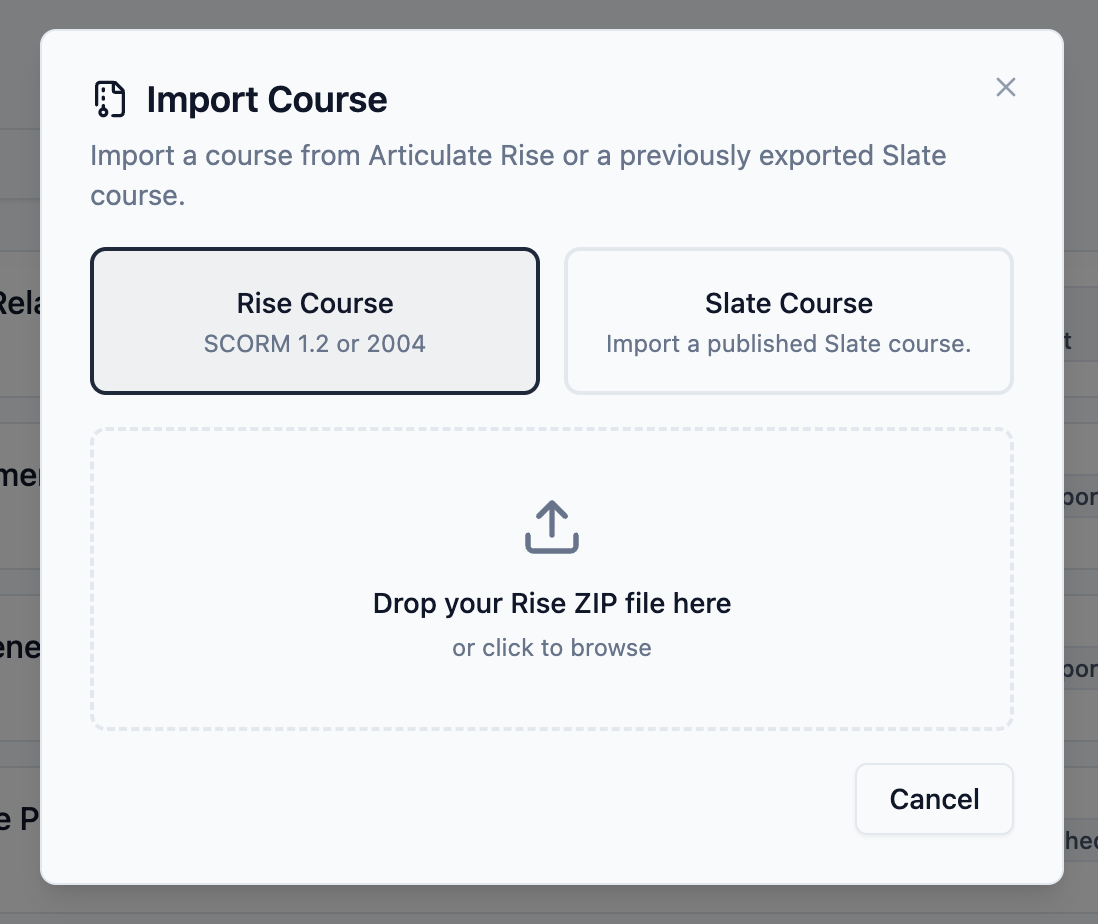
Single import lets you bring in one course at a time. It's available to all Slate course authors, including those on the Free tier.
- From your Slate dashboard, click Import
- Select Rise as the format
- Drag and drop your ZIP file, or click to browse
- Slate processes the file and shows you a preview of the course structure
- Review any warnings (more on these below)
- Click Import to create the course
The import process extracts your course data, uploads media files to Slate's storage, and converts each Rise block into its Slate equivalent. You'll see progress updates as it works through your content.
Once complete, your course opens in the Slate editor where you can continue editing, apply themes, and export to any format Slate supports. If you run into issues or want to share details about your import experience, use the Copy Logs button in the import dialog to capture diagnostic information you can send to us.
Batch Import (Pro)
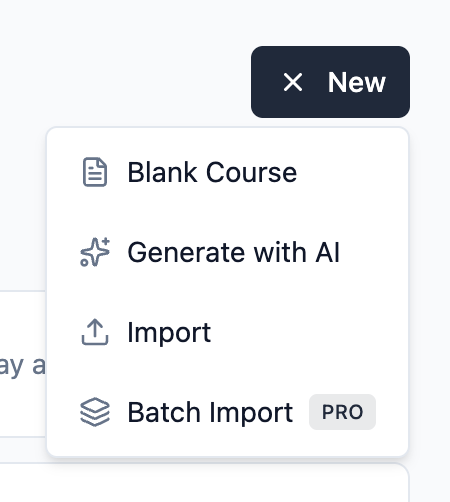
If you're importing multiple courses, batch import lets you process them all in one session. This feature requires a Pro subscription.
- From your dashboard, click New then Batch Import
- Add multiple Rise SCORM exports (or Slate exports, or a mix)
- Each file shows its status: ready, processing, complete, or error
- Click Import All Ready to process everything, or import files individually
- Monitor progress with real-time status updates
- Retry any files that encountered errors
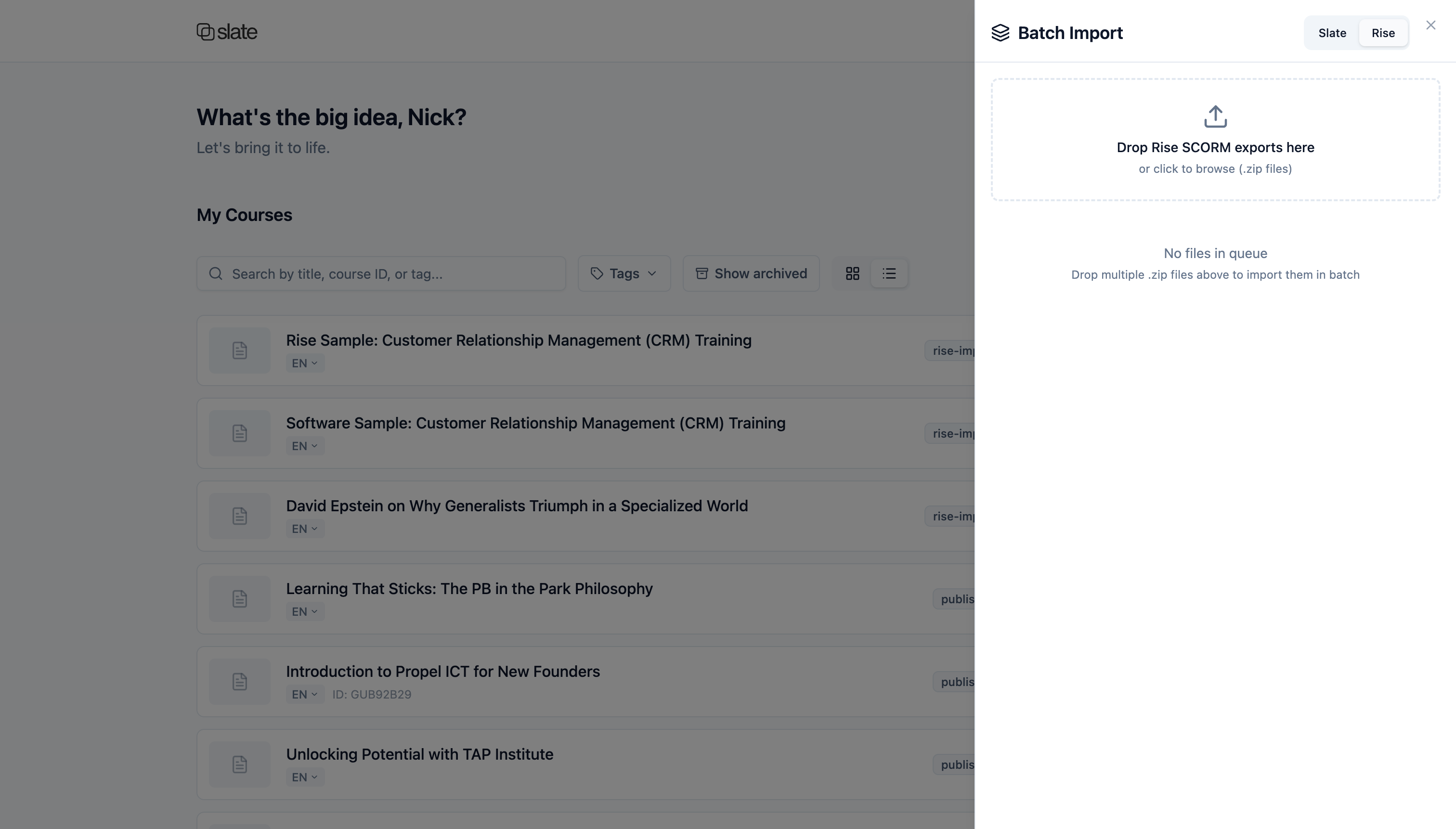
Batch import processes files sequentially to ensure reliable results. You stay on the dashboard after import so you can review all your newly imported courses.
For organizations importing a library of Rise courses, batch import can handle dozens of courses in a single session.
Block Type Conversion Reference
Slate supports many of Rise's most common block types. Here's how each one converts:
Text Blocks
| Rise Block | Variant | Slate Block | Notes |
|---|---|---|---|
| text | paragraph, heading paragraph | text | HTML formatting preserved |
| impact | a, b, c | text | Statement styles converted |
| list | bulleted, numbered | text | Converts to <ul> or <ol> |
| quote | b, background | text | Blockquote with attribution |
| note | — | note | Native note block with variant styling |
| table | — | table | Full table support |
Media Blocks
| Rise Block | Variant | Slate Block | Notes |
|---|---|---|---|
| image | hero, full, text overlay | image | Media files uploaded |
| image | text aside | layout | 2-column (image + text) |
| gallery | three column, grid, carousel | layout | All images in grid |
| multimedia | video, embed | video | YouTube/Vimeo or file |
| audio | — | audio | File or URL |
Interactive Blocks
| Rise Block | Variant | Slate Block | Notes |
|---|---|---|---|
| interactive | accordion | accordion | Direct conversion |
| interactive | tabs | tabs | Direct conversion |
| flashcard | stack | flip-card-carousel | Flashcard Stack converts to a carousel with one-at-a-time navigation. Card aspect ratio is auto-detected from the image dimensions. |
| flashcard | grid | flip-card / layout | Single-card grids become a standalone flip card; multi-card grids become a layout block with nested flip cards (2- or 3-column). |
| quote | carousel | card-carousel | Full carousel behaviour preserved |
| interactive-fullscreen | timeline | accordion | Events become items |
| interactive-fullscreen | process | accordion | Steps become items |
| interactive-fullscreen | labeled graphic | image | Hotspot positions, labels, and descriptions preserved |
| interactive-fullscreen | scenario | accordion | Scenes become sections with dialogue. Branching logic is not preserved. |
Knowledge Checks
| Rise Block | Variant | Slate Block | Notes |
|---|---|---|---|
| knowledgeCheck | multiple choice | knowledge-check | Full support |
| knowledgeCheck | multiple response | knowledge-check | Full support |
| knowledgeCheck | fill in the blank | knowledge-check | Full support |
| quiz lesson | multiple choice | knowledge-check | Full support |
| quiz lesson | multiple response | knowledge-check | Full support |
| quiz lesson | fill in the blank | knowledge-check | Full support |
| quiz lesson | knowledge | knowledge-check | True/false style |
Other Blocks
| Rise Block | Variant | Slate Block | Notes |
|---|---|---|---|
| divider | line | divider | Direct conversion |
| divider | numbered | divider | ⚠️ Number labels lost |
| spacer | — | divider | Style: space |
| button | primary, secondary | button | Direct conversion |
| button | stack | layout | Multi-row layout |
| embed | iframe | iframe | Direct conversion |
| attachment | — | document | Download link |
Smart Conversions
Beyond basic block mapping, Slate applies several intelligent transformations during import:
- Theme colour extraction: Your Rise course's accent colour is automatically applied to your Slate course theme
- Logo extraction: If your Rise course has a logo, it's uploaded and added to your Slate course
- Bold paragraphs → headings: Standalone bold paragraphs are converted to proper <h3> headings for better structure
- Button stacks → layouts: Button stacks convert to 2-column layouts that work well on all devices
- Vimeo and YouTube embeds: Rise stores share URLs that can't be embedded directly. During import, these are automatically rewritten to their embeddable form, including private Vimeo videos with privacy hashes.
- Flashcard aspect ratio: Card aspect ratio (1:1, 4:3, or 16:9) is auto-detected from the source image dimensions so cards look right without manual tweaking.
- URL-encoded paths: Image paths with spaces and special characters are handled correctly
- Empty block handling: Empty heading blocks and other empty content is automatically skipped
- Style sanitization: Rise font styles are stripped so your Slate theme fonts apply consistently
Known Limitations
Some Rise features don't have direct equivalents in Slate yet. When the import encounters these, it converts what it can and generates a warning so you know what to review:
Not Supported
- Sorting activities: No drag-drop category equivalent. Content is skipped.
- Matching activities: No drag-drop matching equivalent. Content is skipped.
- Charts (bar, line, pie): No data visualization blocks in Slate. Content is skipped.
- Question banks: Random draw from question pools isn't supported.
Partially Supported
- Scenario: Scenes and dialogue convert to accordion sections, but branching interactivity and character visuals are lost.
- Timeline/Process: Converts to accordion. Functional but loses visual distinction.
- Numbered dividers: Number labels are lost; becomes a plain divider.
- Continue blocks: Navigation gate behaviour is lost.
Not every Rise feature has a direct Slate equivalent, but coverage is broad and improving. We'll continue updating this guide as we add support for more block types. If you have a Rise course with block types we don't handle well, send it our way.
Review after import: Always preview your imported course and check each lesson before publishing. The import warnings will point you to sections that may need attention.
Media Handling
During import, Slate extracts all media files from your Rise export and uploads them to Slate's cloud storage:
- Images: Automatically extracted and uploaded. Slate uses content-hash deduplication, so identical images aren't stored twice.
- Audio: Audio files are extracted and uploaded.
- Video: Embedded YouTube and Vimeo videos work immediately. Local video files require a paid plan for storage.
- Documents: Attachments are extracted and uploaded. Document storage requires a paid plan.
Troubleshooting
If your import fails, here are the most common causes:
- Double-zipped file: Some systems create a ZIP inside a ZIP. Extract once and upload the inner ZIP, or try uploading without extracting to see if Slate can handle it.
- Wrong export format: Make sure you exported as SCORM, not Web/HTML. Web exports have a different structure that Slate can't parse.
- Non-Rise SCORM package: Slate's Rise import only works with Rise exports. Storyline, Captivate, iSpring, and other tools produce different SCORM structures.
- Corrupted ZIP: If the download was interrupted or the file was corrupted, try exporting again from Rise.
Each error includes a specific message explaining what went wrong and how to fix it.
Try It Yourself
Ready to bring your Rise courses into Slate? Sign in to Slate and click Import from your dashboard. If you're new to Slate, sign up free and try importing a course.
For organizations importing larger course libraries, Pro includes batch import so you can process multiple courses in a single session.
Slate is not affiliated with or endorsed by Articulate Global, Inc. Articulate and Rise are trademarks of their respective owners.