Build, manage, and share courses through conversation.
The first eLearning authoring tool to support MCP.

- Generate a full course just by asking
- Run review cycles with your team
- Search, tag, and organize your library
MCP requires a Standard or Pro plan. Every tool is included on both.
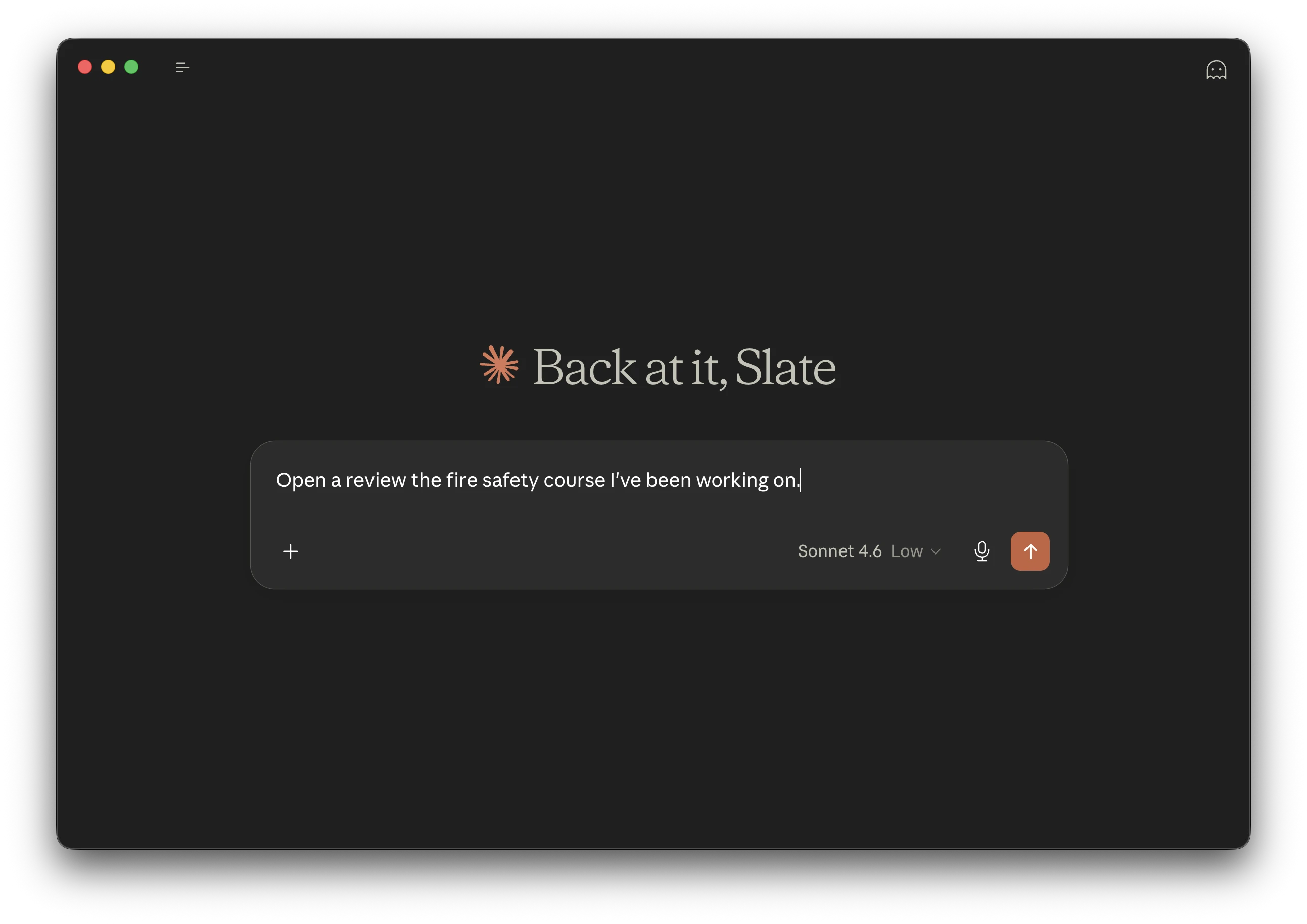
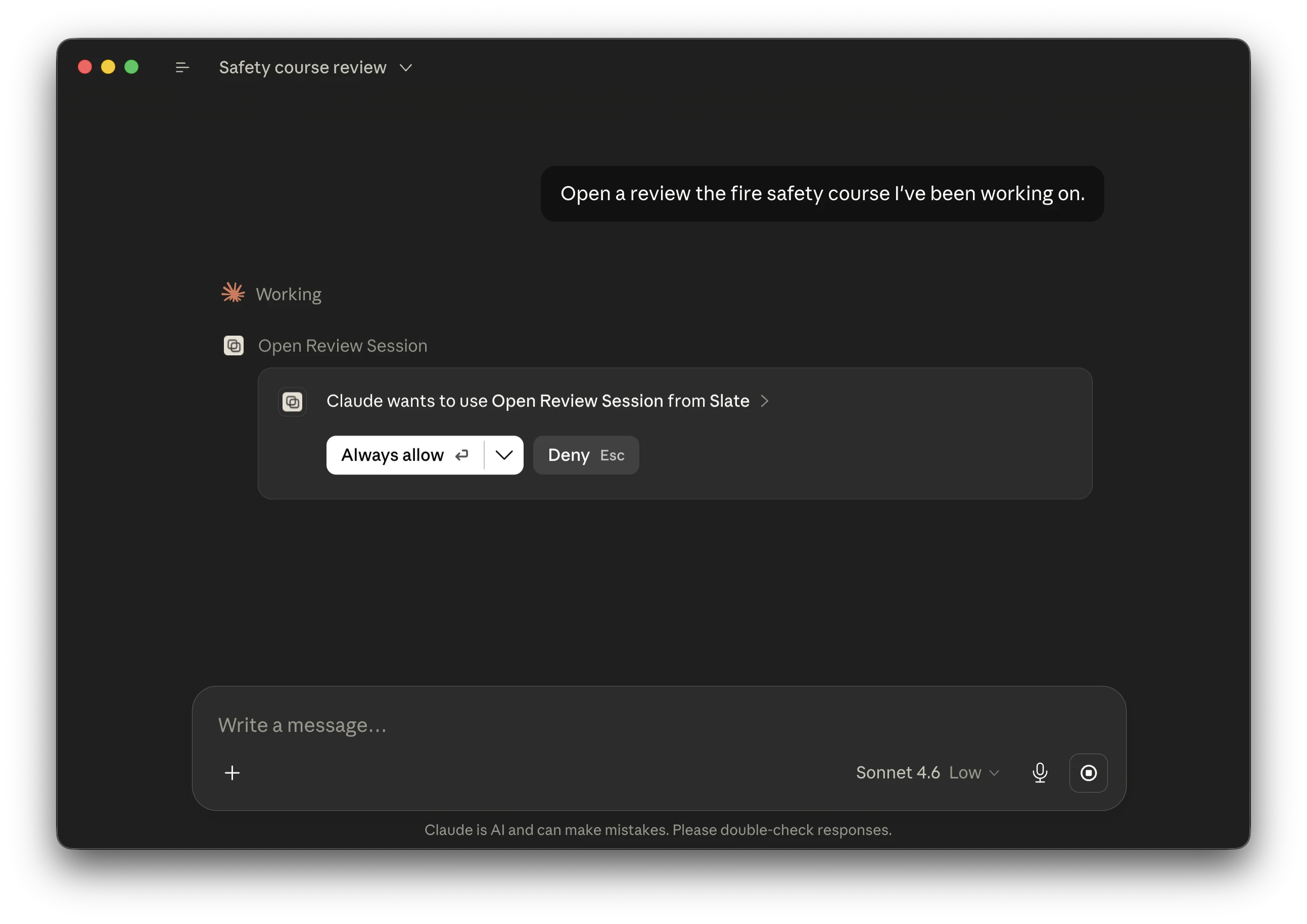
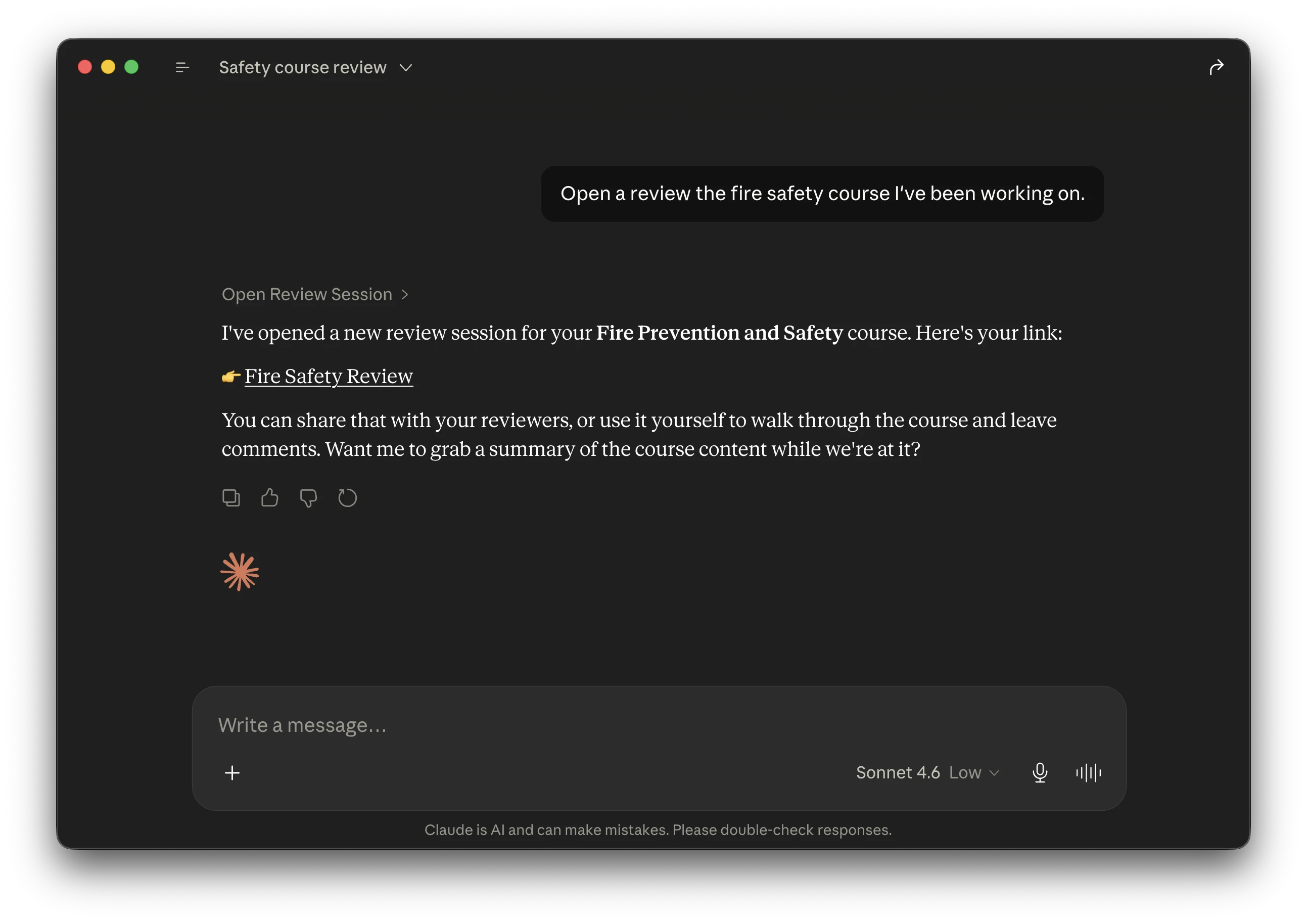
How Slate MCP works
MCP lets AI assistants interact directly with Slate. No copy-pasting, no context-switching.
Connect your AI assistant
Add Slate MCP to your AI assistant. One-time setup takes about 2 minutes.
Authenticate with Slate
When your assistant first connects, you'll authorize it through Slate's secure OAuth flow.
Start building
Generate course drafts, manage content, run reviews, and share your work through natural conversation.
See it in action
Real examples of Slate MCP working with Claude.
Checking your credit balance
Ask Claude how many credits you have, and it queries your Slate account directly.
Generating a course
Describe what you need, and Claude creates a course draft with sections and lessons.
Creating presentations from courses
Turn web-based training into instructor-led materials. Extract course content and build slide decks with Canva MCP.
Setup instructions
Connect Slate to your AI assistant in a few steps.
Open Connectors
Click Customize, then select Connectors.
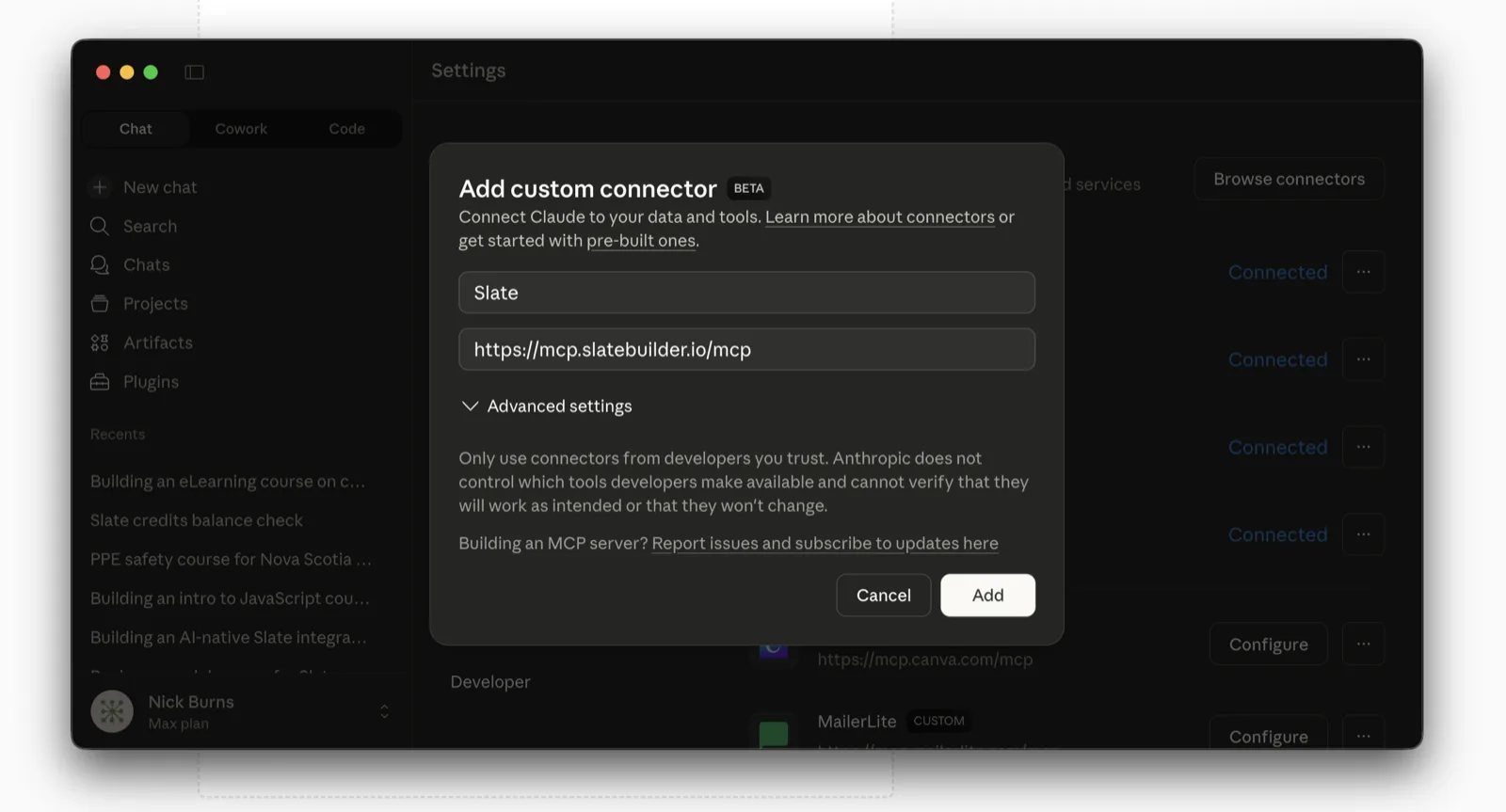
Add a custom connector
Click the + button, then choose Add custom connector.
Add Slate
Enter Slate as the name and use this URL:
https://mcp.slatebuilder.io/mcp
Authorize on first use
When you first ask Claude to use Slate, you'll be prompted to sign in. This uses OAuth 2.1 with PKCE for security.
Using another client? Copilot and any MCP-capable assistant connect with the same Streamable HTTP URL, https://mcp.slatebuilder.io/mcp, and the same OAuth sign-in.
New to MCP? Learn how the Model Context Protocol works
Available tools
Every tool below works on Standard and Pro. Filter or search to explore what your AI assistant can do through Slate MCP.
create_courseCreate Course
Generate an e-learning course draft through conversation in 15 languages. Specify duration, difficulty, audience, location, and source materials (PDF, PPTX, DOCX). Set your default course language in your Slate profile.
list_coursesList Courses
View and search courses with sorting options. Each result includes a direct link to the Slate editor.
get_course_summaryGet Course Summary
Retrieve detailed information about any course by title or ID.
find_in_coursesFind in Courses
Search the text inside your courses, not just titles. Find every course and lesson that mentions a word or phrase, with a highlighted snippet, across one course or your whole library.
replace_in_courseReplace in Course
Find and replace text within a single course. You preview every change before anything is written, and Slate saves a version first so edits stay reversible.
preview_coursePreview Course
Create or refresh the managed public preview link for a course.
list_preview_linksList Preview Links
View a course's public preview link and whether it is current.
create_preview_linkCreate Preview Link
Create a new shareable preview link for any course.
update_preview_linksUpdate Preview Links
Update a course's public preview link with the latest content when it is outdated.
list_reviewsList Reviews
View all reviews for a course with comment counts and shareable reviewer links.
open_reviewOpen Review
Create a new review session with optional course snapshot.
close_reviewClose Review
Close a review session and get final statistics.
summarize_reviewSummarize Review
Generate an AI-powered prose summary of review feedback.
view_review_checklistView Checklist
View current checklist items and completion status for a review.
generate_review_checklistGenerate Checklist
Generate AI-powered checklist items from review feedback.
toggle_checklist_itemToggle Checklist Item
Mark a checklist item as complete or incomplete.
find_reviewsFind All Reviews
Find reviews across ALL courses. Filter by status.
add_course_tagAdd Course Tag
Add a tag to a course for organization.
remove_course_tagRemove Course Tag
Remove a tag from a course.
bulk_add_course_tagsBulk Add Tags
Add a tag to multiple courses at once by search or course IDs.
bulk_remove_course_tagsBulk Remove Tags
Remove a tag from multiple courses at once.
get_workspace_statusGet Workspace Status
Confirm which Slate workspace your tool calls will land in right now: Personal or a specific Team space, the plan tier, and (for teams) the shared credit pool. Resolved fresh on every request, so it stays accurate after you switch workspaces in Slate.
check_creditsCheck Credits
View your current AI credit balance. Course generation costs 1,250 credits.
get_user_preferencesGet User Preferences
Check your default theme so the AI can offer to apply it to new courses.
get_account_statsAccount Dashboard
Get aggregate metrics across all courses.
search_slate_documentationSearch Documentation
Browse and read the official Slate documentation and help articles.
search_lesson_md_documentationSearch LESSON.md Spec
Look up the open LESSON.md authoring format so your assistant can draft Markdown that imports straight into Slate.
get_presentation_contentPresentation Export
Extract course content for presentations using Canva MCP or other tools.

API rate limits
Request limits vary by subscription tier.
Standard
Pro
Every MCP tool is available on both paid plans. Only the daily request volume changes between Standard and Pro.
Limits reset automatically. Upgrade your plan for higher limits.
Works with your AI assistant
Slate MCP speaks the standard Model Context Protocol, so it connects to the AI tools you already use. Here's what works today and what's next.
Claude
Available nowFull support for Claude Desktop, Claude.ai, and Claude Code. We are working toward a 2026 Anthropic marketplace listing, but Anthropic controls the review and approval timeline.

Codex
Available nowDrop the Slate server into your Codex config and your terminal AI can draft, review, and share courses end to end.

GitHub Copilot
Available nowAdd Slate to Copilot's MCP configuration with the same URL and the same sign-in. Any MCP-capable client connects the same way.

Cursor
Available nowPoint Cursor at the Slate MCP endpoint and build courses without leaving your editor.

ChatGPT app
Up nextConnecting Slate directly inside the ChatGPT app still requires developer mode today. We are working toward a dedicated listing before the end of 2026, but OpenAI controls the review and approval timeline. In the meantime, the smoothest path for OpenAI users is Codex.

Antigravity CLI
Not yet validatedGoogle is retiring the Gemini CLI in favour of its new Antigravity CLI. We haven't been able to validate Slate against it yet.
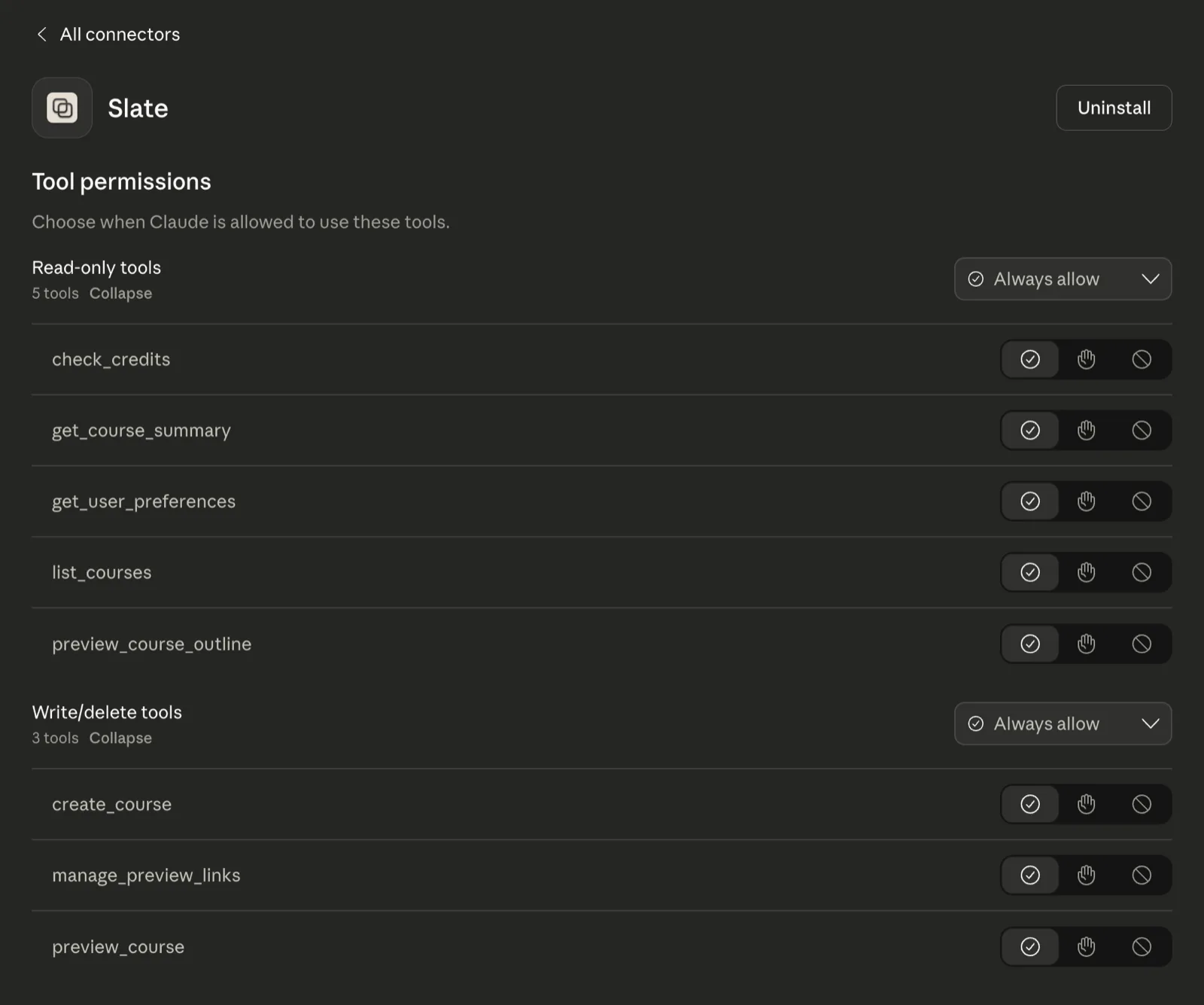
Understanding permissions
MCP gives you control over what your AI assistant can do.
Built with security in mind
Your data is protected at every layer.
OAuth 2.1 with PKCE
Industry-standard authentication prevents token interception and ensures only you can access your account.
Row-Level Security
Database policies ensure you can only access your own courses, reviews, and preview links.
No PII Exposure
MCP tools never expose personally identifiable information. They return only your own course metadata, review feedback, preview links, and account settings.
Rate Limiting
Built-in protection against abuse with per-user limits.
Questions about security? Contact us
Slate meets you where you work.
Connect your AI assistant, hand off a Canva design, or import a LESSON.md bundle. Slate turns any of them into a course you can refine and export.