Slate for Canva is live: turn presentations into SCORM courses with AI
At a glance
- What launched: Slate for Canva is now available in the Canva Apps Marketplace.
- What it does: Generates a structured eLearning draft from any Canva presentation, then hands off to Slate for refinement, translation, and export.
- Who it's for: L&D teams, instructional designers, and subject-matter experts who already work in Canva and need their content to land in an LMS.
- Languages: Draft in any of 15 supported languages. On Standard and above, translate to the others and publish a single multi-language SCORM package.
- Cost: Free to install. Course generation uses Slate AI credits. Course authors on the Free plan receive a one-time 1,000-credit bonus for connecting Canva; course authors on Standard and Pro plans get an additional 1,000 credits each month.
Slate for Canva is now live in the Canva Apps Marketplace. If you build training, courses, or any kind of structured learning content, and you already do your design work in Canva, you can now turn a presentation into an interactive, SCORM-ready eLearning course without leaving your workflow.
This post walks through what the app does, who it's built for, and a common workflow for turning a instructor-led onboarding or training deck into a web-based course your LMS can track.
What Slate for Canva does
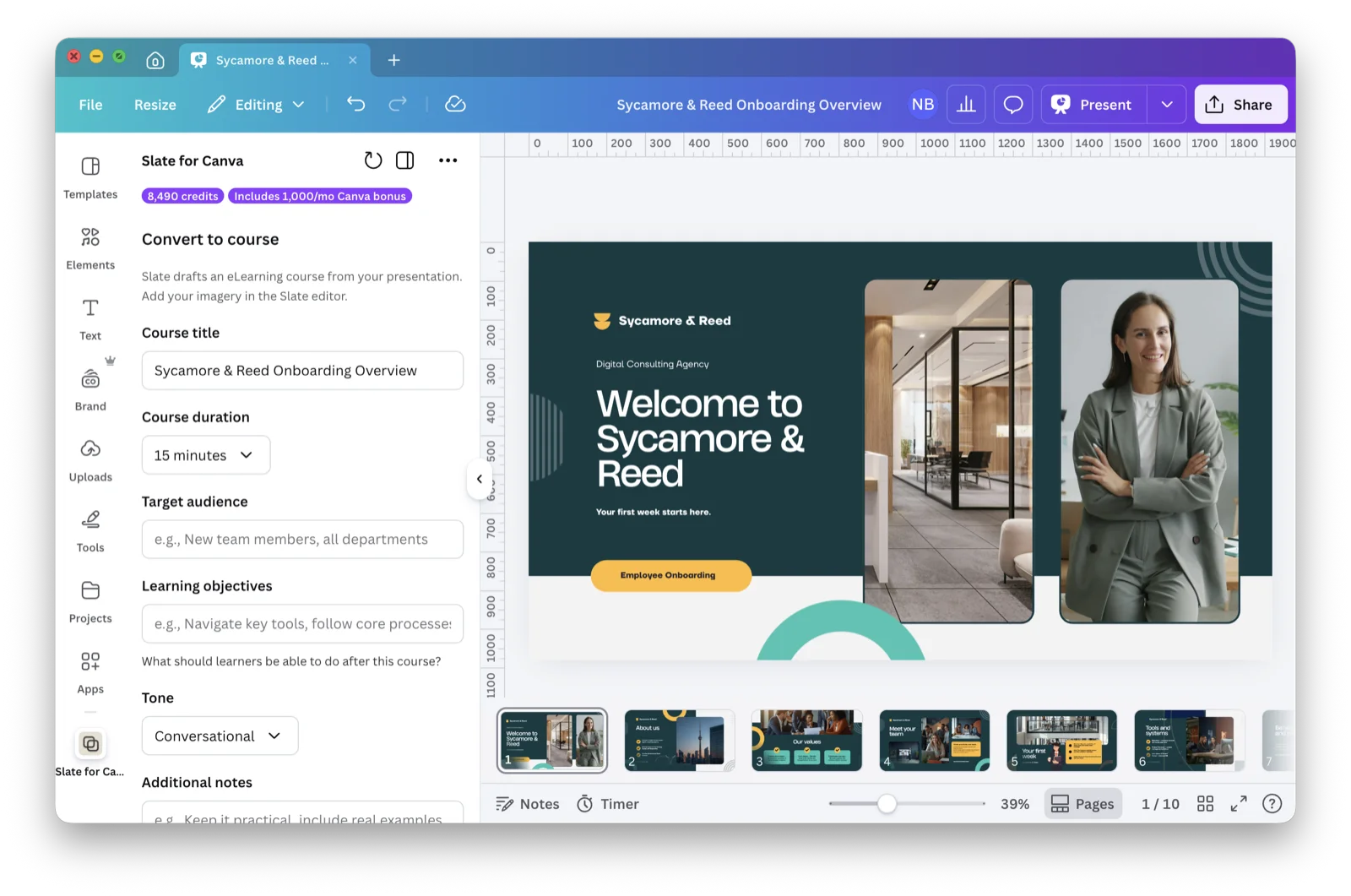
Slate for Canva is an app that uses your Canva presentation as source material to generate an eLearning draft. You stay in Canva to set up the course: audience, duration, learning objectives, tone, and whether to include an assessment. The AI drafts a structured course from your slides, and the draft opens in Slate Builder where you can refine, customize, and export it.
The output isn't a slideshow wrapped up as a course. Slate's AI treats your deck as source material and applies instructional design principles to draft a structured, mobile-friendly course: lessons with introductions, content sections, knowledge checks, and summaries. (For a deeper read on how Slate's AI is built specifically for eLearning, see AI features built for eLearning.) You then refine the draft in Slate's editor before publishing it to your LMS.
How it works
Three steps:
- Design in Canva. Build, or open, a presentation as you normally would. The app reads the structure and content of your slides as the basis for the course.
- Configure in the Slate sidebar. Open the Slate panel inside Canva and set up the course: course title, audience, duration, learning objectives, tone, optional notes, whether to include an assessment, and whether to apply your default Slate theme. This configuration is what makes the AI's draft purposeful rather than generic.
- Refine and publish in Slate. When the draft is ready, you continue in Slate's editor. Rewrite, restructure, add or rework assessments, translate, and export as SCORM 1.2, SCORM 2004, xAPI, cmi5, or standalone HTML.
Refinement, translation, and export happen in Slate, not in Canva. The Canva sidebar is the on-ramp; Slate's builder is where the course is taken across the finish line.
Who it's built for
If your team already works in Canva, this is built for you. Three groups in particular:
- Workplace L&D and training teams who design slide-based content for instructor-led sessions and need similar content available as self-paced eLearning their LMS can track.
- Instructional designers and learning agencies who use Canva for presentations and visuals and want a faster path from ILT to web-based, SCORM-ready course.
- Subject-matter experts in HR, healthcare, operations, and similar fields who don't use traditional authoring tools but already build presentations in Canva.
Listed in Canva's AI Generation category
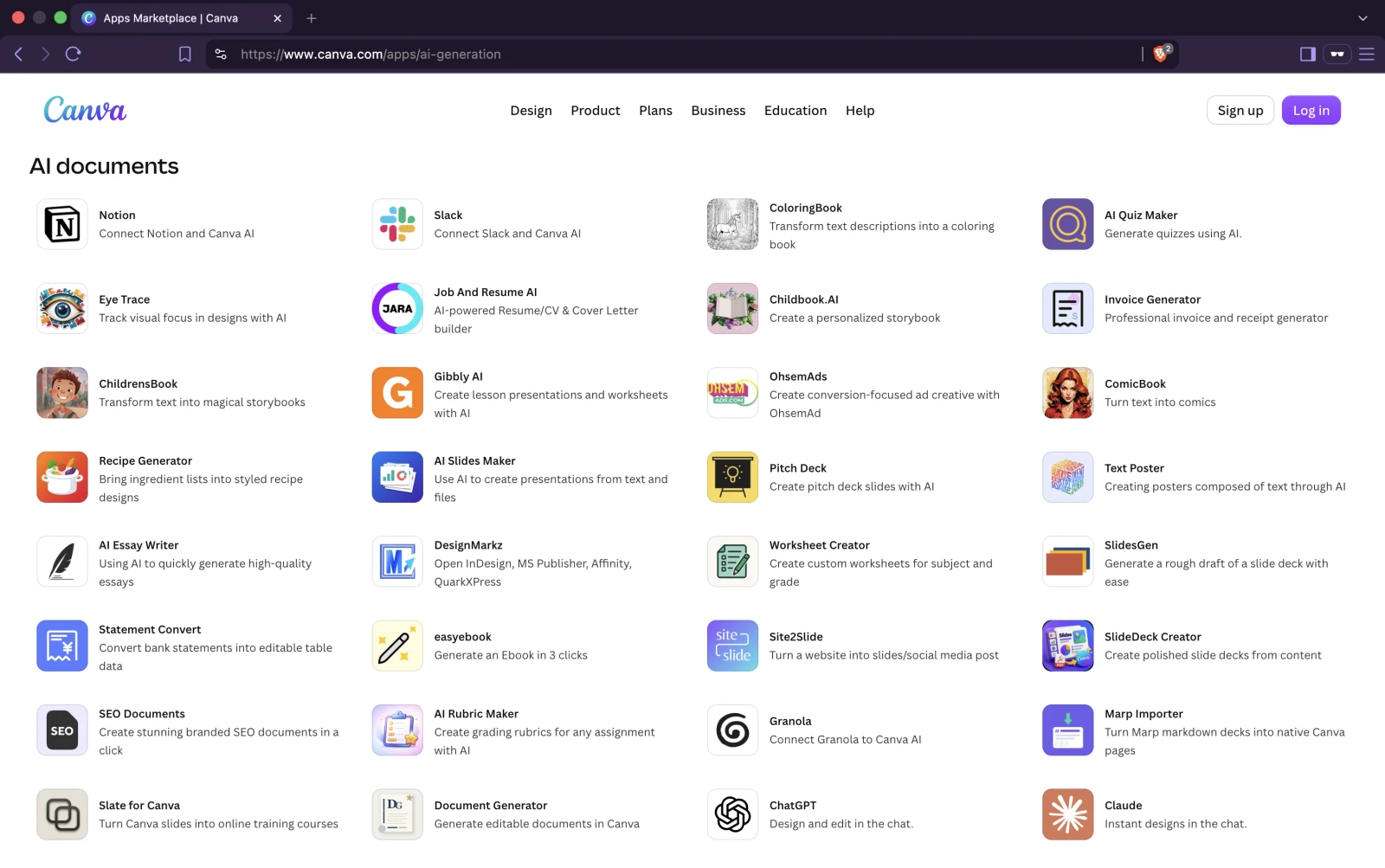
Slate for Canva also appears in Canva's AI Generation category, alongside tools such as ChatGPT, Claude, Notion, and Granola. It is one place to discover AI tools that work inside Canva.
A common workflow: classroom training to self-paced eLearning
Many teams have slide decks from in-person training sessions: onboarding decks, compliance training, product launches, soft-skills workshops. Converting those decks to self-paced eLearning is usually a multi-week project, with handoffs between SMEs, designers, and authoring-tool specialists.
With Slate for Canva, that workflow collapses into something closer to an afternoon:
- Open any existing Canva deck.
- Launch the Slate for Canva app from the sidebar.
- Add the course and audience details: title, audience, duration, learning objectives, and tone.
- Choose whether to include an assessment and apply your default Slate theme.
- Generate the draft. Slate uses those details and your deck to produce structured lessons, content sections, knowledge checks, and a summary. It is not a one-to-one slide-to-lesson translation: the deck is source material that the AI restructures for self-paced learning.
- Open the draft in Slate. Tighten the writing, replace placeholder imagery, refine the assessment, and adjust the theme if needed.
- Export as SCORM and upload to your LMS.
The same workflow applies whether you are converting a sales-training deck, a compliance briefing, or a product onboarding flow. The point is that the source material, the deck you have already made, is no longer something to rebuild from scratch.
One deck, many languages
If your training reaches more than one language, Slate for Canva fits into the same workflow. The conversion uses your Slate profile's default language as the target, so set that under your profile before you start. From the generated draft, course authors on Standard and Pro plans can translate into any of the other 14 supported languages from inside Slate. Translations use additional AI credits.
Multi-language courses can be published as a single SCORM package, with a language toggle at runtime so learners can pick the language they want without a separate course or LMS upload. For teams that previously rebuilt a course per language, this turns a quarterly localization project into a same-day task.
What it costs
The app is free to install from the Canva Apps Marketplace. Course generation uses Slate AI credits, and translating a course into another language uses additional credits.
To make trying the workflow straightforward, connecting Canva grants bonus credits on top of your plan:
- Free Slate accounts get a one-time bonus of 1,000 AI credits for connecting Canva, on top of the standard 1,500 monthly allocation.
- Standard and Pro Slate accounts get an additional 1,000 AI credits each month, on top of their plan allocation.
You will need a free Slate account to receive the generated draft and finish the course. Sign-up takes about a minute.
What's next
Slate for Canva turns the presentations you already have into a starting point for structured, interactive learning. We'll keep improving that workflow based on what course authors make with it.
Image and media transfer, using the actual images from your Canva presentation in the generated course instead of temporary placeholders, is on our roadmap.
Try it now
Install Slate for Canva from the Canva Apps Marketplace. Or visit the Slate for Canva product page for setup instructions and workflow details.
You'll need a free Slate account. After signing up, set your default course language under your Slate profile, then install the app in Canva and connect it to your Slate account. You're ready to convert your first deck.