Seat time updates: how long is your course?
Slate Builder now makes it easier to estimate course length and keep that information useful. Set an estimated duration, check your course’s word count at a glance, and open our free seat time calculator with the word count already filled in.
Your saved estimate can appear on the course cover page and is now included in library CSV exports from personal and team workspaces. If you start with LESSON.md, our open Markdown format, you can also bring a duration into Slate through COURSE.md. Here’s how these updates fit together.
Set an estimate where you work
Open Seat time from Course Overview to enter your course's estimated duration in whole minutes. You can also access it from the cover page settings.
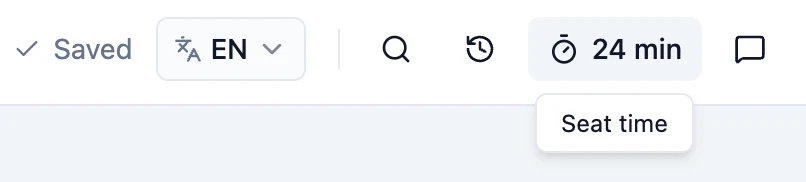
The estimate stays under your control. You know whether a course asks learners to skim a reference, watch a video, work through a difficult scenario, or pause to practise a task. Save the duration that reflects that experience, and revise it as the course develops.
Word count at a glance
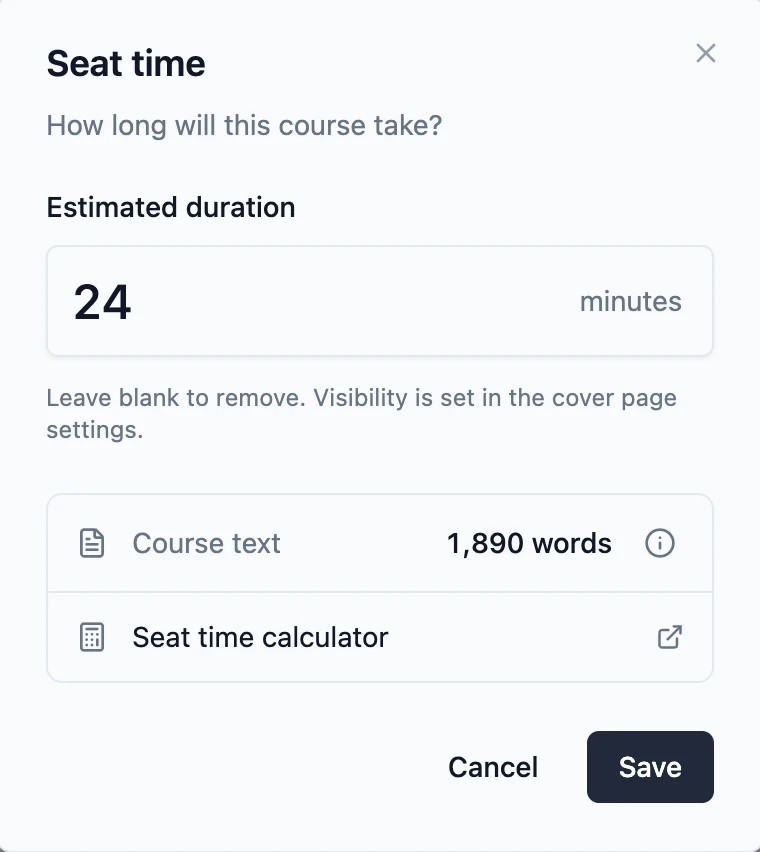
Open Seat time to see an approximate word count in the selected course language. That gives you a quick sense of the reading load without copying the course into a separate document.
It’s useful during review, too. If a short induction course has grown well beyond its original scope, the count gives you a reason to look again: could an explanation be shorter, or would a section work better as a separate course?
The count covers course text, including questions and feedback. It excludes code and text inside images, documents, audio, and video. Use it to help choose your estimate alongside media playback, interactions, and the time learners need to think or practise.
Open the calculator with your word count ready
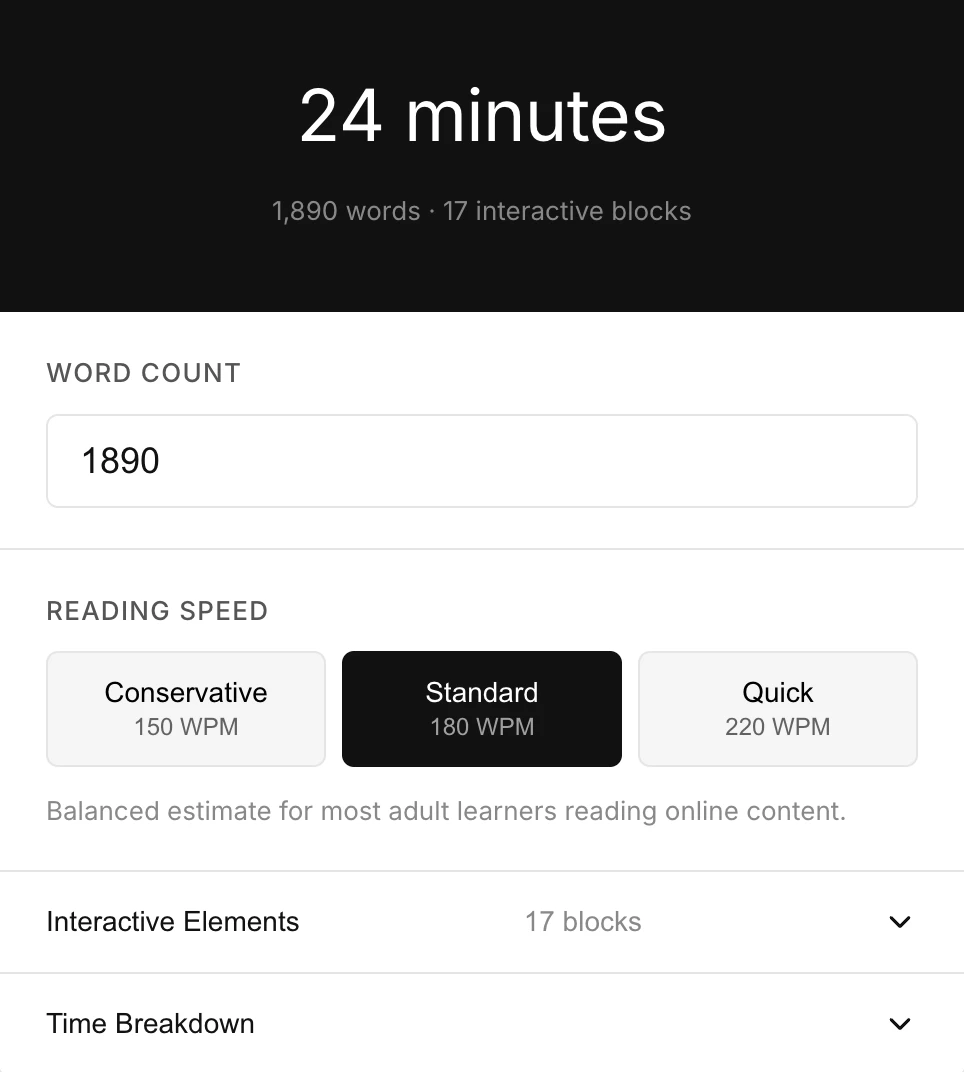
Our free eLearning seat time calculator now connects more closely with Slate Builder. Open it using the Seat time calculator link in the Seat time settings, and your course's word count is already filled in.
That removes a small but repetitive step: finding the count, copying it, opening another tool, and entering it again.
Choose a reading speed suited to your audience, add the relevant interactive block counts, and adjust the time allowances to reflect your content. The word count is prefilled; the interaction counts and other assumptions are yours to review.
Use the result as a starting point, then return to Slate Builder and save your chosen estimate. The calculator doesn’t write a duration back into your course automatically.
Word count, reading speed, video length, and the time allowed for activities can help you build an initial ballpark estimate. We always recommend testing the course with actual learners and adjusting the estimate based on how long they take, including time to pause, reflect, and practise.
Choose what learners see on the cover page
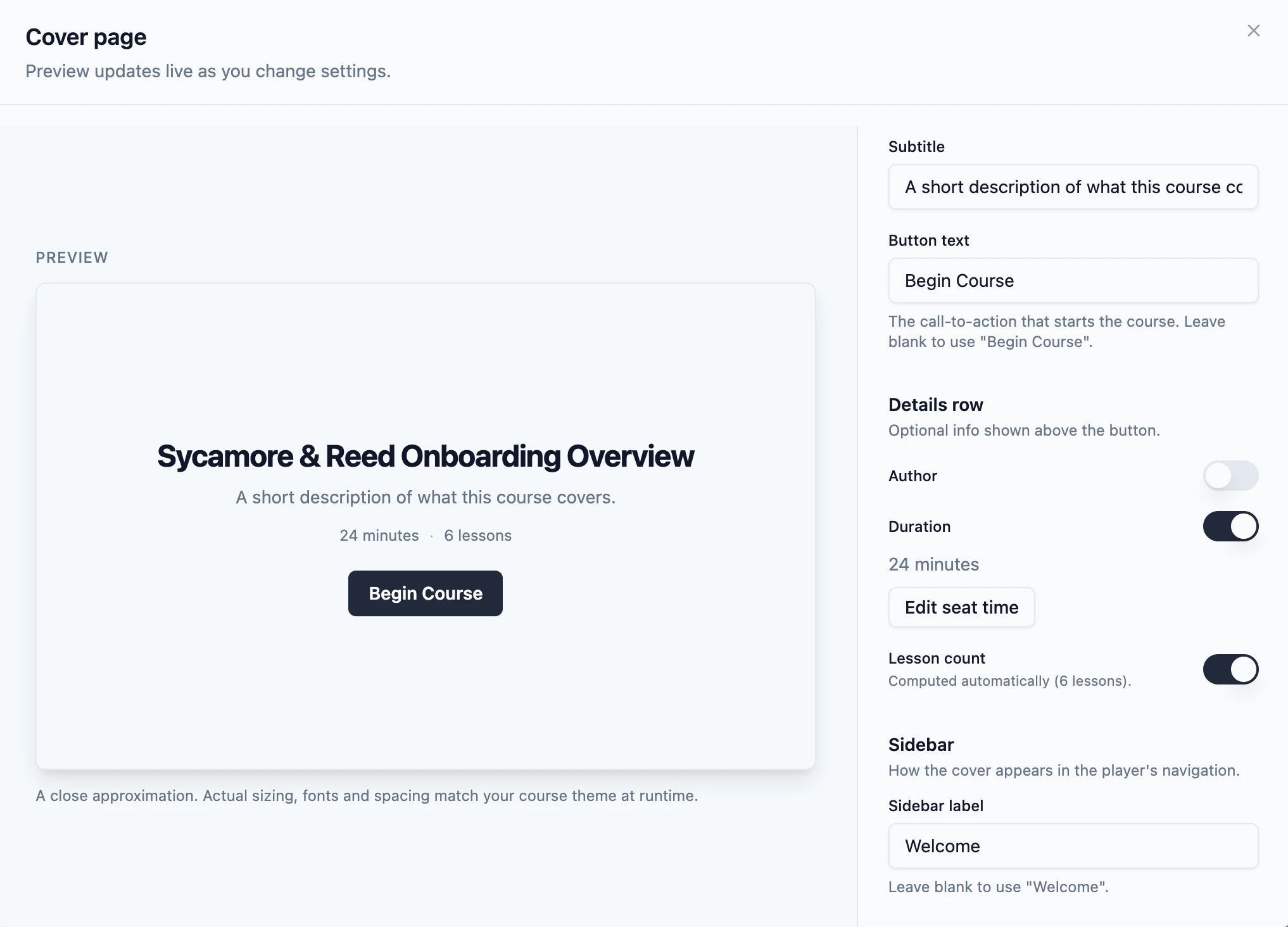
Choose whether learners see the estimate by turning Duration on or off in the cover page settings. Turning it off hides the estimate from the cover page while keeping it saved for your own planning and library exports.
Bring seat time into your library spreadsheet
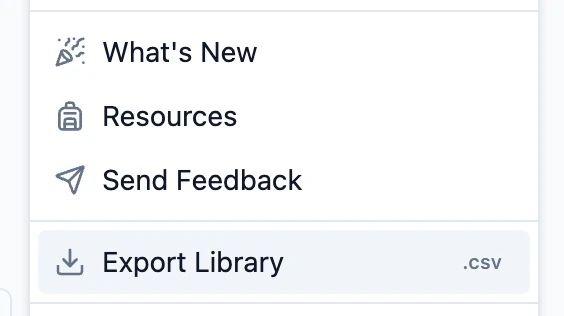
CSV exports from both personal and team workspaces now include a Seat time (minutes) column.
From the Dashboard, open Settings and choose Export Library to download your library details as a CSV file.
The column contains the saved estimate in minutes, making it straightforward to sort, filter, or total durations in your spreadsheet. For example, estimates of 15, 20, and 25 minutes give a team a 60-minute starting point for planning an onboarding pathway.
Courses without a saved estimate have a blank cell, so you can spot gaps before sharing a training plan. Seat time estimates are included in CSV exports even if they’re hidden from learners on the cover page.
This brings the duration you maintain while authoring into the spreadsheet you use for planning, reducing the need to copy estimates from individual courses.
Keep course details with your Markdown workflow
If you build courses with LESSON.md, you can include a COURSE.md file in your course bundle to define course-level details, including duration.
For a 20-minute course, your COURSE.md file can include:
duration: 20The value is in whole minutes. Slate picks it up when you import the bundle, so your intended duration arrives with the course rather than becoming a separate cleanup task.
Our LESSON.md skill can help you write COURSE.md. See the COURSE.md docs for supported details and examples.
Try it with your next course
Start with the course text, use the calculator to test your assumptions, and save an estimate you can stand behind. Show it on the cover page when it helps learners, and export it when your team needs to plan across the library.
Open your Slate dashboard, choose a course, and select Seat time to try the updates.