Author notes: keep the context close
What changed for this audience? Which lesson still needs approval? What needs checking before the next update? When you build a course, those details can be just as useful as the content itself. Keeping them in a separate document means another place to look and another copy to maintain.
The new Author note block keeps those details inside your Slate lesson. Add notes between blocks for yourself or your training team, so the context stays with the content as you revise the course.
Author notes are for course authors. They stay out of learner previews, review links, and published web and SCORM courses. You choose whether to include them when copying Markdown or exporting a document.
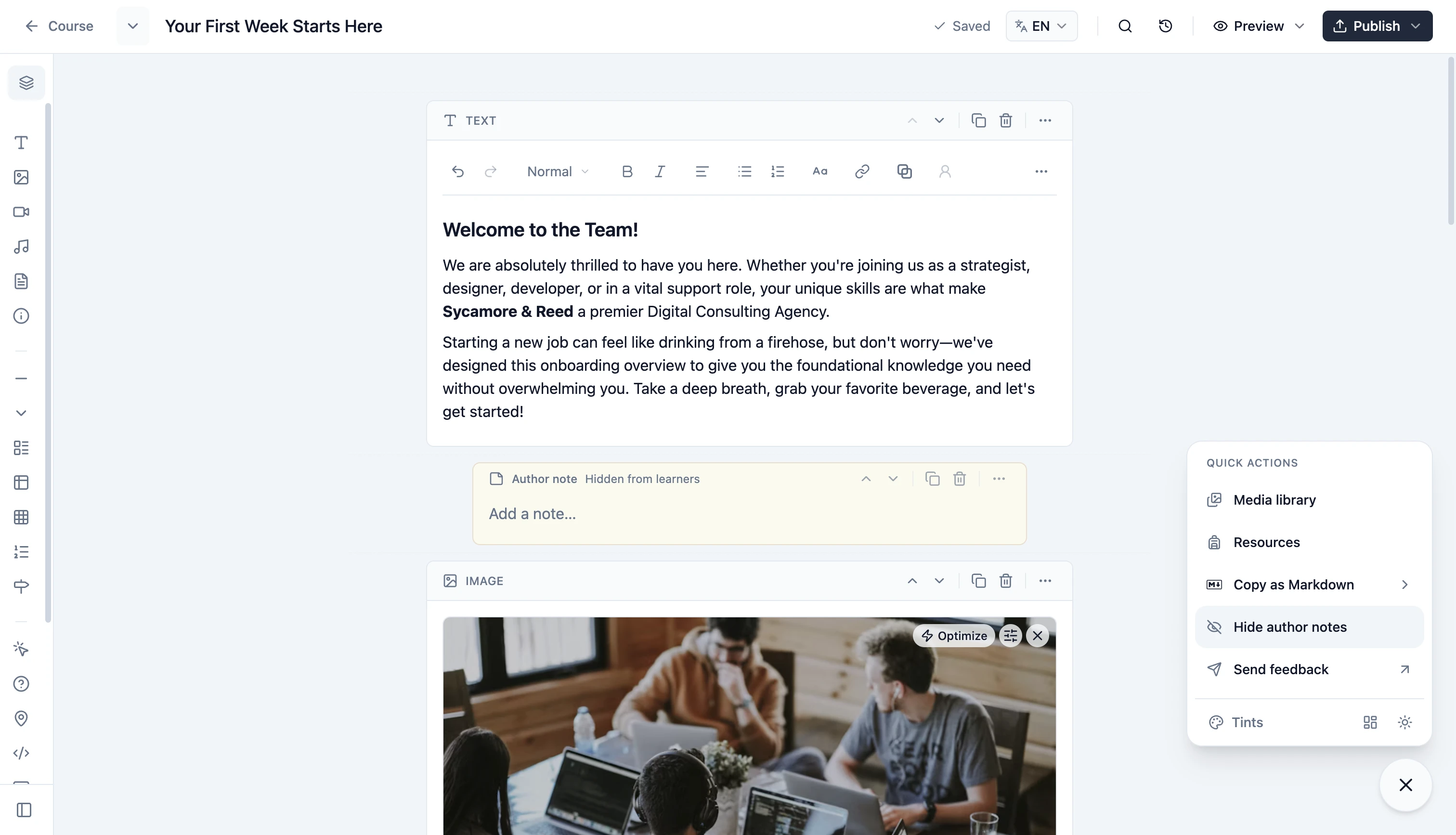
Keep the next course author in the loop
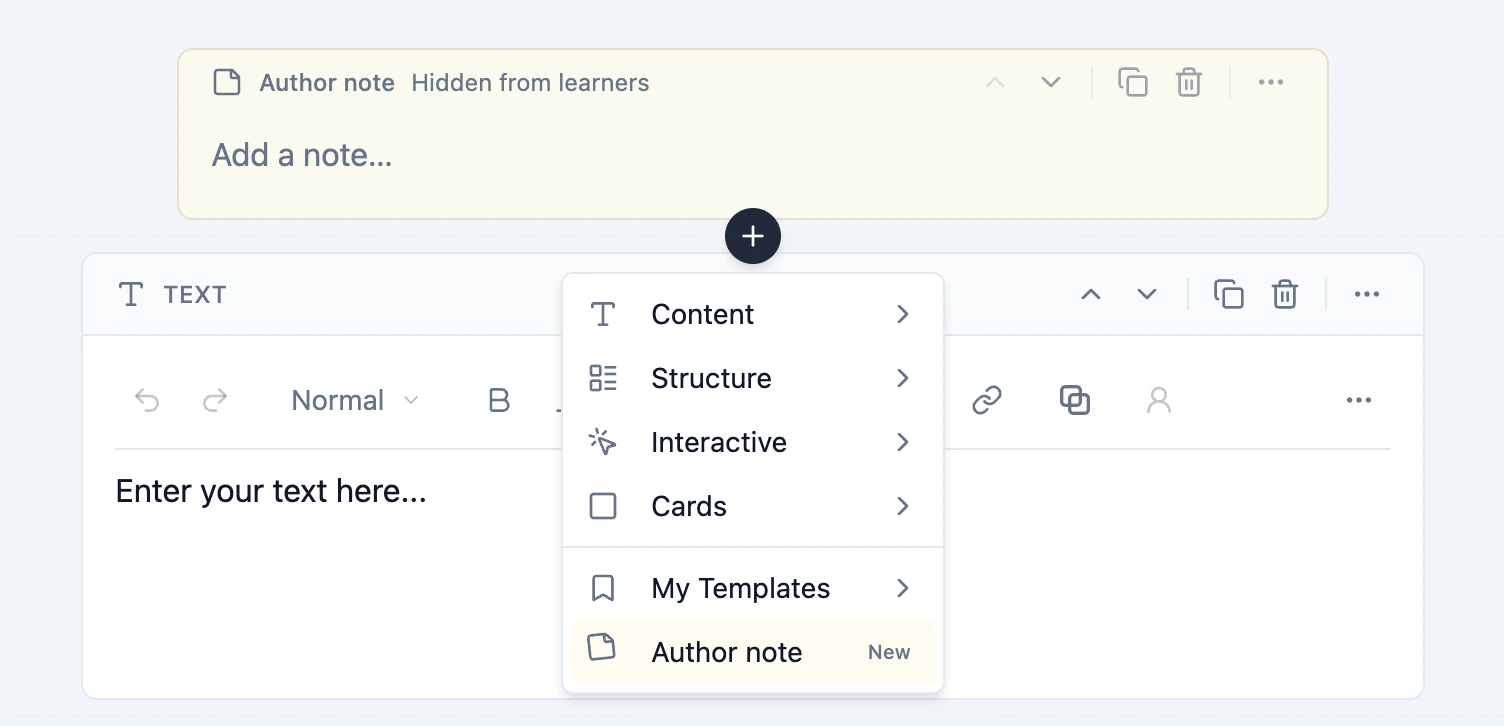
Open the add-block menu between blocks on the lesson canvas and choose Author note. Write your note in the spot where you or a team member will need it.
For a Sycamore & Reed onboarding lesson, that might be a reminder of how you adapted it for a particular audience:
Audience: This version is for new project managers. We replaced the developer walkthrough with a client kickoff scenario and added a handover checklist.
Or a status note at the start of a lesson that still needs a final check:
Approval pending: This is the only lesson still waiting for sign-off. The people team needs to verify the first-week checklist before we publish.
Whether you return for a revision or hand the course to a team member, the note explains who the lesson is for, what changed, and what still needs doing. There is less to piece together from messages or earlier drafts.
Use Author notes for audience adaptations, outstanding checks, source references, or decisions the next course author needs to understand. If the instruction is something learners need to read, put it in a learner-facing block instead.
Clear the canvas without losing your notes
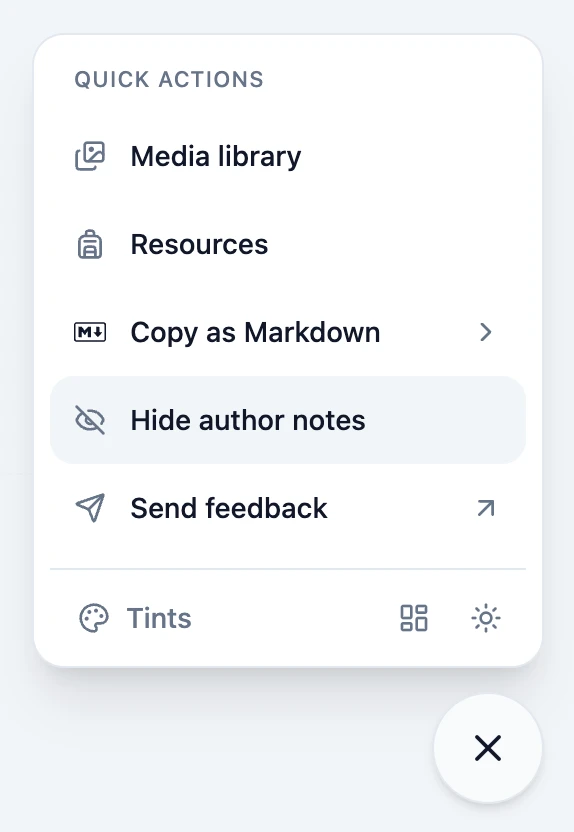
Check the lesson flow without your working notes getting in the way.
Open Quick Actions and choose Hide author notes to remove the notes from the editing canvas. Choose Show author notes to bring them back when you need them. Hiding them keeps the notes saved in the lesson.
Bring them back when you are ready to work through the next revision.
Share a working copy in Word or PDF
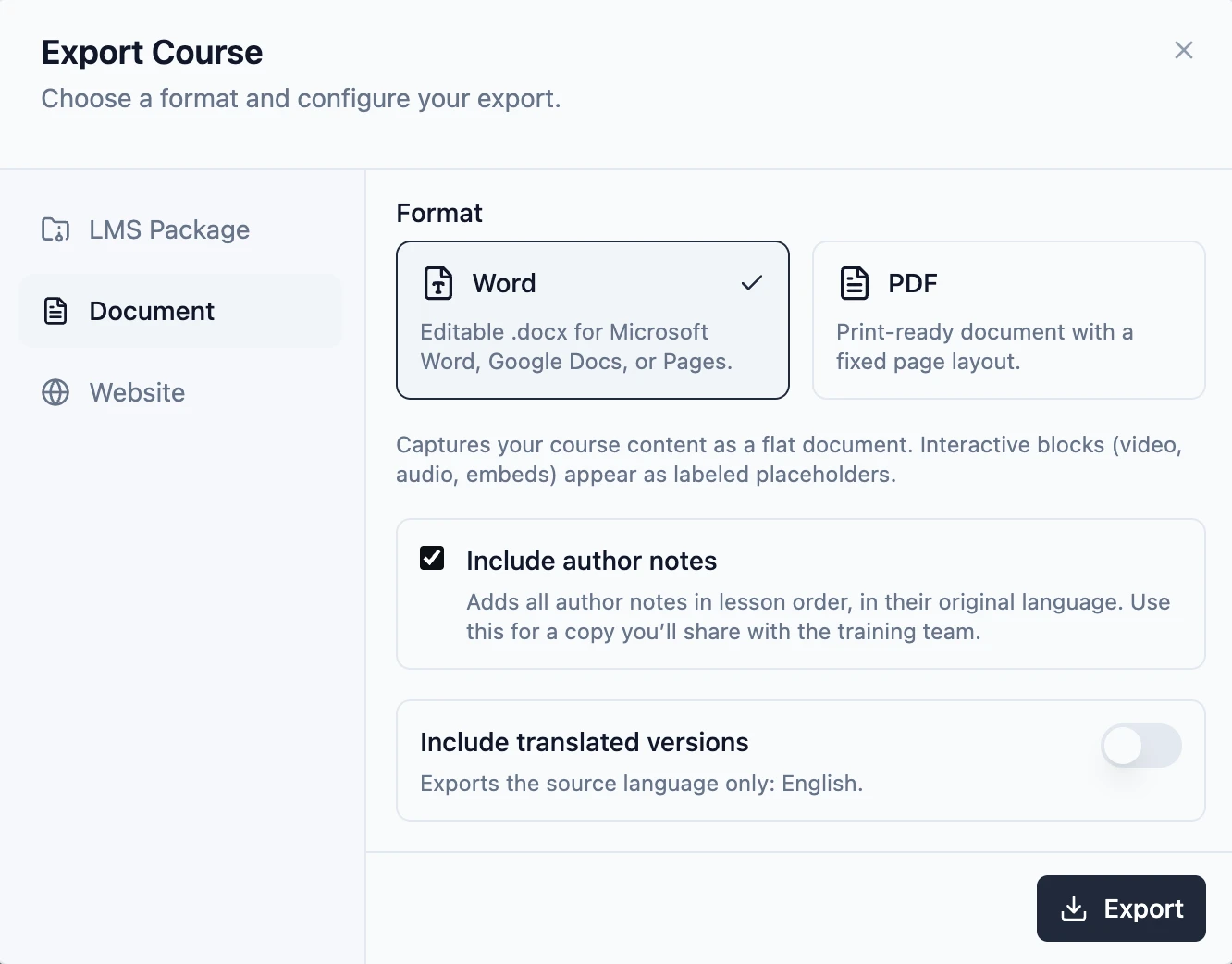
Word and PDF exports are available on Standard and Pro. Include your notes to give the training team a working copy with the course content and outstanding checks together.
When exporting to Word or PDF, select Include author notes to bring the notes into the document in lesson order. They are labelled and visually set apart from the course content, so team members can follow the lesson and find the relevant notes as they go.
Leave the option unchecked for a document containing the learner-facing content. Notes are excluded by default. This export choice is separate from showing or hiding notes on your editing canvas.
If you also use the course for a facilitated session, Author notes can hold discussion prompts and preparation steps. Include them in a facilitator's Word or PDF copy while the web or SCORM course stays focused on what learners need.
Bring your notes into your Markdown workflow
Author notes also work with Slate's Markdown workflow. Choose View as Markdown from an Author note's block menu to edit its text.
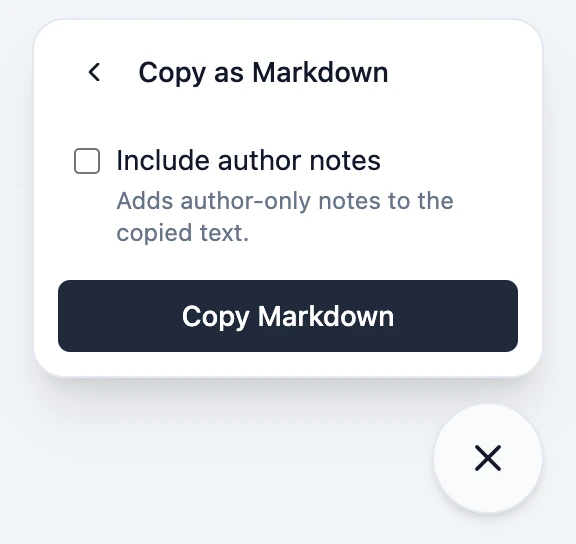
To copy the whole lesson, open Quick Actions → Copy as Markdown. When the lesson contains Author notes, an Include author notes checkbox lets you bring them along with the lesson content. It's unchecked by default, so you choose whether to include the notes in each copy. Showing or hiding notes on the canvas doesn't change that choice.
This is useful when moving a lesson into your text editor or working on a revision with an AI assistant: you can include the context behind the lesson as well as the learner-facing content.
The upcoming LESSON.md v1.11 update adds training notes to the open format using the training-note directive. In Slate, these appear as Author notes:
::: training-note
**Audience:** This version is for new project managers.
We replaced the developer walkthrough with a client kickoff
scenario and added a handover checklist.
:::
This lets you keep the lesson and its authoring context together when drafting in Markdown. If you work with an AI assistant, ask it to put source references, design decisions, and revision reminders in training notes, and keep learner instructions in the lesson content.
Slate supports this workflow now. The v1.11 specification will be added to the LESSON.md site soon.
Try it in the lesson you're working on
Open Slate Builder, open a lesson, and add an Author note beside an activity or explanation. Start with one detail you would otherwise leave in a separate document: an audience adaptation, a check still outstanding, or a reminder for the next revision.
The next time you or a team member opens the lesson, that context will be there.
Author notes are available on every plan, including Free. Adding and editing notes, showing or hiding them, and working with them in Markdown are all included. Word and PDF exports require Standard or Pro.