Manage and Optimize Your Course Media
At a glance
- Central media library: Browse, search, and filter all uploaded files from one place. Manage your media without opening individual courses.
- Intelligent deletion: Before you delete a file, Slate scans your courses, reviews, and version history to show you exactly where it is used.
- One-click image optimization: Convert images to WebP with a single click. In our tests, file sizes dropped by 96% or more. One AI-generated PNG went from 2.0 MB to 78 KB.
- Available on every plan: All media management features work on Free, Standard, and Pro.
- Team controls: In team workspaces, admins and owners can manage media for the entire team. Editors can only delete files they uploaded.
As your course library grows, so does your media. Images, videos, audio files, documents, and custom fonts all add up. Until now, managing those files meant tracking them down course by course. That changes today.
Slate now gives you a central place to manage every file you have uploaded, tools to understand what is in use before you delete anything, and a way to dramatically reduce image file sizes without leaving the editor.
Your media library, in one place
Previously, the only way to manage uploaded files was from within the course editor. If you wanted to find an image or clean up old uploads, you had to open a course first. Now, your full media library is accessible from Settings > Storage.
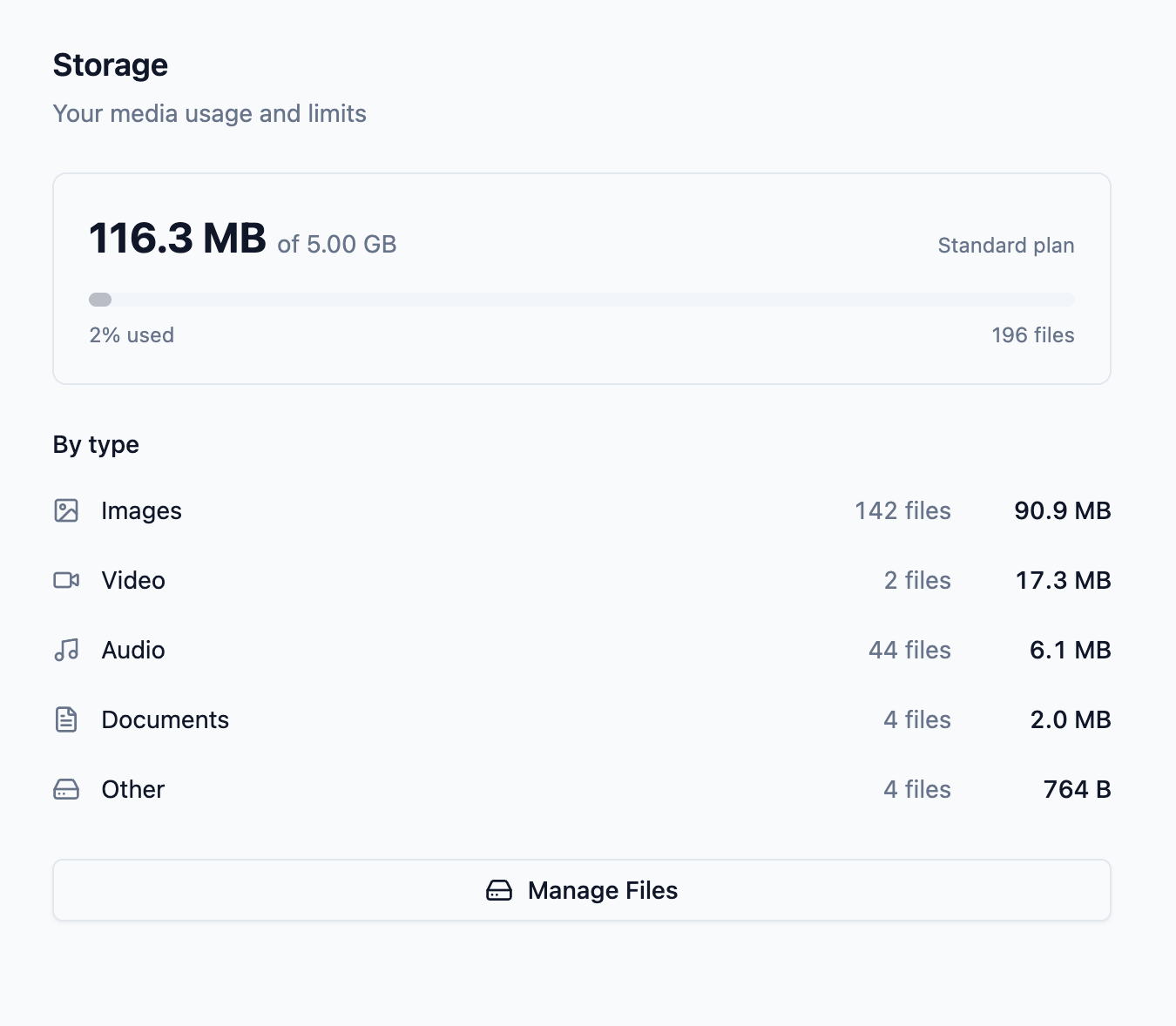
You can search files by name, filter by type (images, videos, audio, documents), and browse everything in a visual grid. Select individual files to see their metadata, or switch into bulk selection mode to manage multiple files at once. It is the same media picker you see when building a course, but focused entirely on management and cleanup.
Know what you are deleting before you delete it
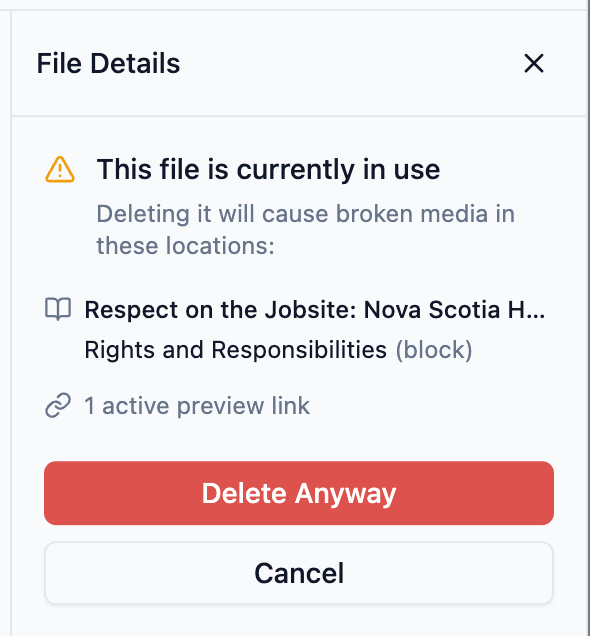
Deleting a file that is still in use somewhere can break things. A missing image in a published review. A broken logo on a shared course. A gap in your version history. These are the kinds of problems that are easy to cause and hard to track down.
Slate now scans for references before any deletion. When you select a file to delete, the system checks five places where it might be used:
- Lesson blocks: Image, video, audio, and document blocks across all your courses
- Course logos: Files set as a course logo in course settings
- Custom fonts: Font files stored in your media library
- Version history: Saved course snapshots
- Published reviews: Review snapshots shared with stakeholders
If a file is in use, you will see a clear warning listing every location. Deletion is never blocked. You always have the choice to proceed. But you will never be caught off guard by what breaks.
This works for individual files and bulk deletions. Select multiple files, and Slate checks references for each one, then gives you a summary: how many are in use, how many are safe to remove, and the option to delete only the unused files if you prefer.
Optimize images in one click
Large images are the most common reason courses take up more storage than they need to. AI-generated images are especially heavy. A single AI-generated PNG can easily be 2 MB or more, and a course with dozens of them adds up fast.
The one-click optimization feature converts images to WebP format using a quality ladder that finds the best balance between file size and visual quality. The original image is always preserved, so you can reset if needed.
The results speak for themselves. In our testing, optimization reduced file sizes by 96% or more in the vast majority of cases. One AI-generated PNG dropped from 2.0 MB to just 78 KB with no visible loss in quality. For courses built with AI-generated visuals, this can free up significant storage.
After optimizing, you will see the original and new file sizes side by side with the percentage saved. Animated GIFs are excluded from optimization to preserve their animation.
Available on every plan
All of these features work on every Slate plan, including Free. The media library, reference scanning, intelligent deletion warnings, and one-click image optimization are available to everyone. No upgrade required.
Team media controls
For teams on the Pro plan, media management includes role-based permissions. Admins and workspace owners can browse and delete media uploaded by any team member. Editors can only delete files they uploaded themselves. This keeps shared media libraries safe while still giving individuals control over their own files.
Get started
These features are live now. Head to Settings > Storage in Slate to explore your media library, clean up unused files, and optimize your images. For more details, see the media management docs.