Embed Anything: How Slate Auto-Detects Your Videos and Embeds
At a glance
- Video block: Paste a URL from YouTube, Vimeo, Synthesia, Loom, or Google Drive. Slate extracts the video ID and renders a live preview.
- Embed block: Paste iframe code from Canva, Miro, H5P, Genially, Padlet, or Google Docs/Sheets/Slides. Provider detected automatically.
- Auto-detection: Provider badge, correct aspect ratio, and live preview applied instantly. No guesswork before publishing.
- SCORM tracking: Play, pause, and completion events tracked for YouTube, Vimeo, and uploaded videos.
- Any iframe works: The embed block accepts any valid HTTPS iframe source, not just recognized providers.
Embedding third-party content in eLearning usually means copying a block of <iframe> code from another platform, pasting it somewhere, and hoping it renders correctly. You can't see the result until you preview or export the course. If the URL is wrong or the dimensions are off, you find out after the fact.
Slate handles this differently. When you add a video or embed block and paste a URL or embed code, Slate recognizes the provider, shows you a live preview right in the editor, and applies sensible defaults for aspect ratio and sizing. No guesswork.
Two Blocks, One Goal
Slate has two block types for external content, each designed for different use cases:
- Video block: Purpose-built for video providers. Paste a regular URL (not embed code) and Slate extracts the video ID, converts it to the correct embed format, and renders a preview. Supports YouTube, Vimeo, Synthesia, Loom, Google Drive, and direct video file uploads.
- Embed block: For non-video embeds. Paste the
<iframe>embed code from any provider. Slate parses it, detects the provider, and shows a live preview. Supports Canva, Miro, H5P, Genially, Padlet, Google Docs, Google Sheets, and Google Slides.
The video block is the simpler option when your content is a video: paste a sharing URL and Slate handles the rest, including ID extraction, embed formatting, and caption support. The embed block is more general-purpose and works with any <iframe> source.
How Auto-Detection Works
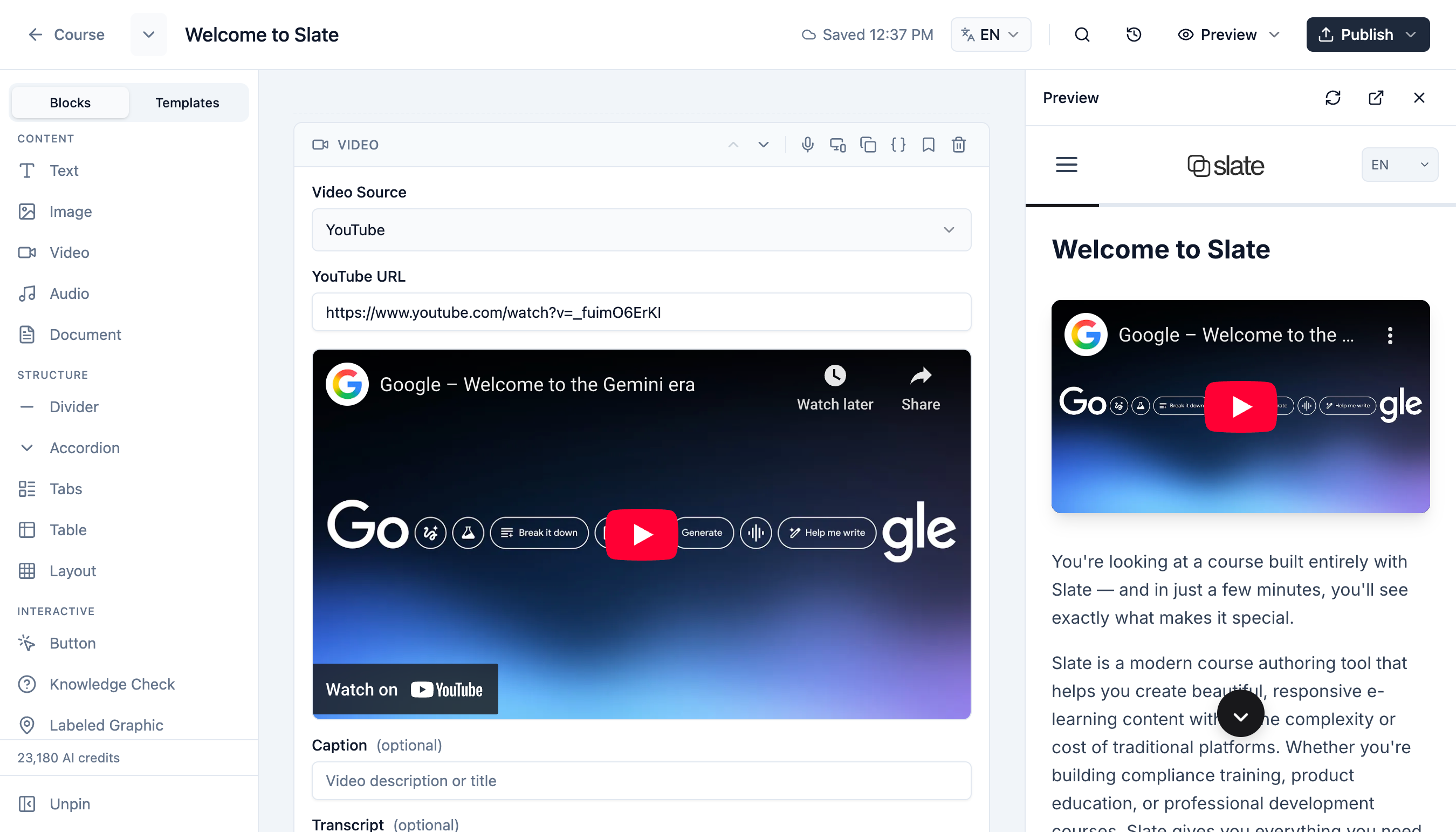
When you paste content into a video or embed block, Slate runs through a detection pipeline:
- Parse: For video blocks, Slate reads the URL directly. For embed blocks, it extracts the
srcattribute from the pasted<iframe>code. - Match: The URL is checked against known provider patterns. YouTube URLs, Vimeo links, Canva embeds, and others are each recognized by their domain.
- Badge: A provider badge appears in the editor (e.g., "YouTube detected" or "Canva detected") so you can confirm Slate understood your embed correctly.
- Preview: A live preview renders directly in the editor. You see exactly what your learners will see.
- Defaults: The correct aspect ratio is applied automatically: 16:9 for video providers, or provider-specific defaults for embeds.
For video blocks, Slate goes a step further. It extracts the video ID from the URL and constructs the proper embed URL. So you can paste https://www.youtube.com/watch?v=dQw4w9WgXcQ and Slate converts it to the embed format behind the scenes. No need to hunt for embed code, which is often buried deeper than a regular sharing link.
Supported Providers
Video Block
Paste a regular URL. Slate extracts the video ID and handles the embed format.
| Provider | What to Paste | Aspect Ratio |
|---|---|---|
| YouTube | youtube.com/watch?v=... or youtu.be/... |
16:9 |
| Vimeo | vimeo.com/... |
16:9 |
| Synthesia | share.synthesia.io/... |
16:9 |
| Loom | loom.com/share/... |
16:9 |
| Google Drive | drive.google.com/file/d/.../view |
16:9 |
| Direct upload | Upload a video file | 16:9 |
Embed Block
Paste the <iframe> embed code from the provider's sharing or export UI.
| Provider | What to Paste | Aspect Ratio |
|---|---|---|
| Canva | Embed code from Canva's Share menu | Auto |
| Miro | Embed code from Miro board sharing | Custom (default 500px height) |
| H5P | Embed code from H5P content | Auto |
| Genially | Embed code from Genially | Auto |
| Padlet | Embed code from Padlet sharing | Auto |
| Google Docs / Sheets / Slides | Embed code from File → Share → Publish to web | Auto |
Any valid <iframe> embed code will work in the Embed block, even from providers not listed here. The auto-detection badge and defaults only apply to recognized providers, but the preview and rendering work for any HTTPS iframe source.
Video Block Features
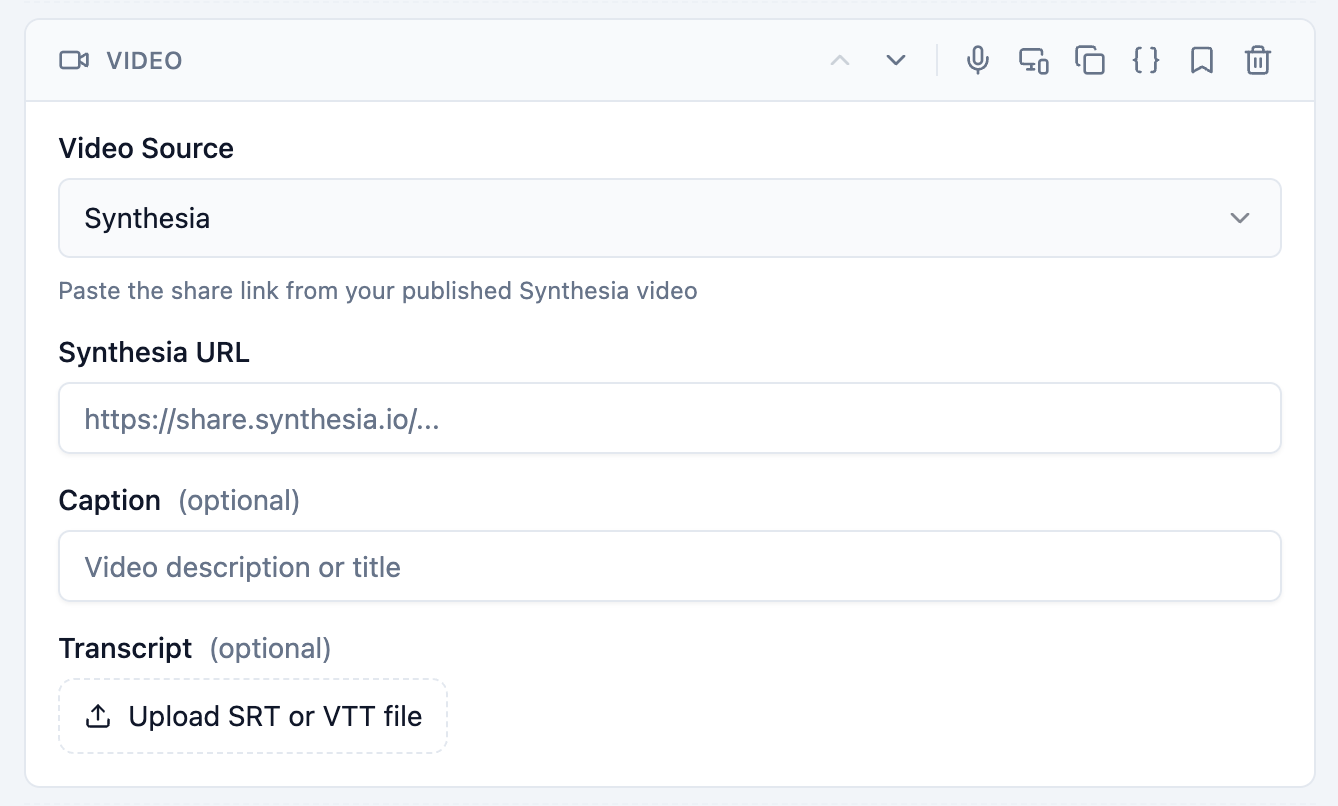
The video block is built specifically for video content and includes features that the generic embed block doesn't:
- URL-only input: Paste a regular sharing URL. Slate extracts the video ID and builds the correct embed URL automatically. No need to find the embed code.
- Provider selector: Choose your provider from a dropdown, or let Slate detect it from the URL. Each provider shows a placeholder hint (e.g.,
https://www.youtube.com/watch?v=...) so you know what format to paste. - Direct upload (paid plans): Upload video files for native HTML5 playback. Useful when your video isn't hosted on a third-party platform.
- Transcripts and captions: For uploaded videos, add SRT or VTT subtitle files. SRT files are automatically converted to WebVTT. Captions render as standard HTML5 text tracks in the player.
- SCORM tracking: Play, pause, seek, and completion events are tracked for LMS reporting. Available for YouTube (via IFrame API), Vimeo (via Player SDK), and uploaded videos (via native HTML5). Other providers (Synthesia, Loom, Google Drive) render as standard iframes without tracking.
Embed Block Features
The embed block handles any <iframe> content and provides tools for getting the display right:
- Paste full embed code: Paste the entire
<iframe>snippet. Slate extracts the source URL, dimensions, and title attribute automatically. - Aspect ratio control: Choose 16:9, 4:3, 1:1, or set a custom pixel height. Recognized providers get sensible defaults applied automatically.
- Accessibility title: Set a title attribute for the iframe, which screen readers use to describe the embedded content.
- Provider help links: Links to embed documentation for common providers are shown at the bottom of the block, so you can quickly find instructions for getting embed code from Canva, Google Docs, Padlet, and others.
Why This Matters
Embedded content is a core part of modern eLearning. Training courses regularly include videos from YouTube or Synthesia, interactive boards from Miro, collaborative documents from Google, design assets from Canva, and interactive activities from H5P or Genially.
When these embeds are treated as opaque code blocks, problems hide until late in the workflow. A typo in an iframe URL, a missing permission on a Google Doc, or the wrong Synthesia share link: you won't catch any of these until you test the export manually, or worse, a learner reports it.
With Slate's auto-detection, you know immediately:
- Is the URL valid? The live preview confirms it loads correctly.
- Is it the right content? You see exactly what learners will see, right in the editor.
- Is the sizing right? Aspect ratios are set automatically for recognized providers, and you can adjust them before publishing.
Security
Slate validates all embed URLs before rendering them. Dangerous URL schemes like javascript:, data:, and vbscript: are blocked. Only HTTPS sources are allowed. This protects both course authors in the editor and learners in the player.
Try It Yourself
Video and embed blocks are available on every Slate tier, including Free. Sign in to Slate and add a Video or Embed block to any course. Paste a URL and see the provider detection in action.
If you're new to Slate, sign up free and start building.