What's new in Slate: April 2026
At a glance
- Cover pages (Free): a branded opening for any course, with four hero layouts, optional metadata, and translatable copy.
- Multi-language editing (Standard and Pro): structural changes in your source language now sync to every target, and translated copy is editable inline across every block type.
- Lesson templates (Standard and Pro): save standard lessons as reusable templates and drop them into any course in two clicks.
- Code block updates (Standard and Pro): Undo and Redo buttons with keyboard shortcuts, plus a rebuilt AI generation prompt that produces fewer silent-failure outputs.
- Wide content layout: a new Themes option that gives images, videos, tables, and multi-column layouts more room while keeping text in a reading column.
- Plus: simplified block toolbar, per-block backgrounds, masonry layouts, voice input for AI Chat, QR codes for preview and review links, and more.
April was a busy month. The headlines are cover pages, end-to-end multi-language editing, lesson templates, code block improvements, and a new wide content layout. Several smaller things shipped alongside them. Here is the round-up.
Cover pages (Free)
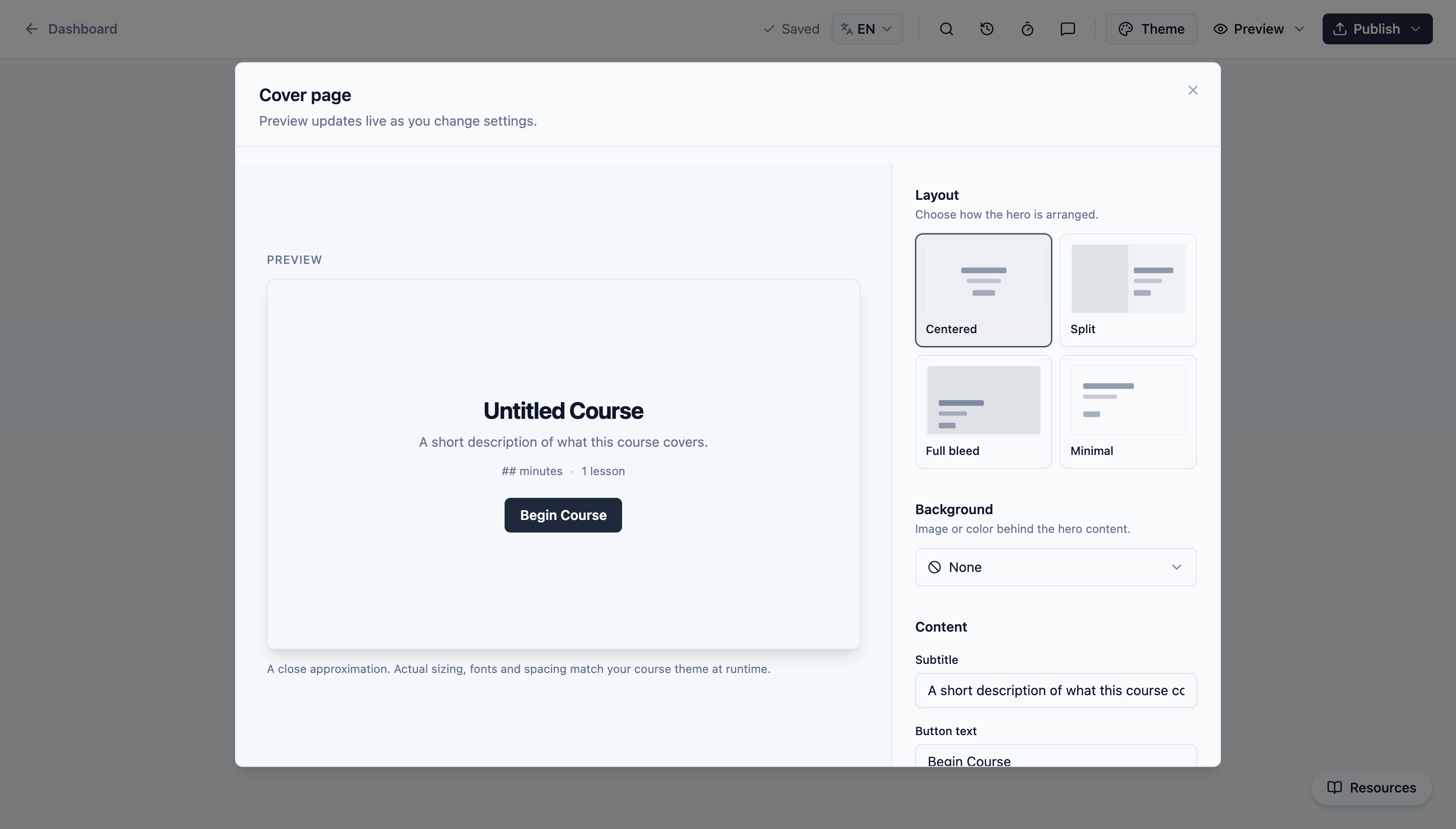
Every course can now open with a customizable cover page: a hero layout, optional metadata, and a customizable call to action. New courses ship with a pre-populated Welcome cover so you can see every option before deciding what to keep.
Pick from four hero layouts (Centred, Split, Full bleed, Minimal), set a background image, solid colour, or none with an overlay darkness slider, and toggle author, duration, and lesson-count metadata independently. The sidebar label and button text are both configurable per course.
Cover pages are translatable end to end and available on all plans, Free included.
Multi-language editing (Standard and Pro)
AI-assisted course translations are available on the Standard and Pro plans, paid from your AI credit pool. What changed this month is the workflow around them: source and target languages now stay in sync, and translated copy is fully editable in place across every block type. (On Free, you author your course in a single language of your choice; translation is a paid feature.)
Previously, translating a course was effectively a one-shot operation. You translated to a target language and any structural change in the source after that point (adding a lesson, removing a block, reordering options) could drift out of alignment with the target. The new workflow makes the source the single source of truth for structure. Add a block in your source language and the same block appears as a placeholder in every target language, ready to be translated. Remove or reorder a block in the source and the change propagates to every target. Structural controls are now hidden when you're viewing a target language.
For inline edits, switch the language picker, click into any block, and edit directly. Source content shows alongside each translation field as a reference.
Lesson templates (Standard and Pro)
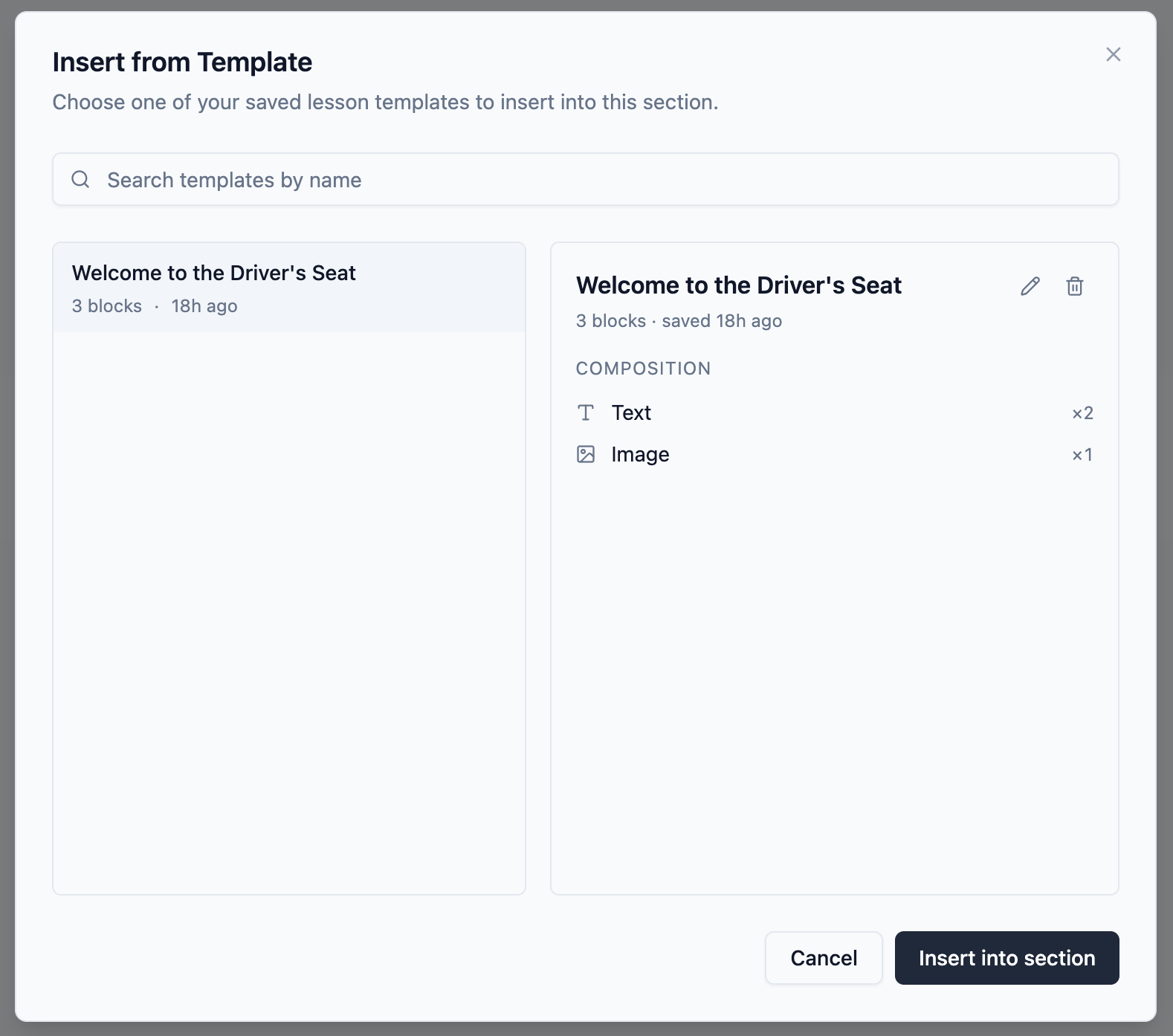
You can now save a standard lesson as a template once and drop it into any course in two clicks. (Cover pages, assessments, and conclusions have their own dedicated settings and aren't part of the templates library.)
Saving: click the bookmark icon next to any lesson, name the template, save.
Inserting: open the Add Lesson menu, choose From Template, pick from a searchable list of every template you've saved.
Lesson templates are included on Standard and Pro.
Code block improvements (Standard and Pro)
Two rounds of changes to the code block this month. Most visible: every code block editor now has dedicated Undo and Redo buttons alongside Format, Copy, and Download, with standard ⌘Z / ⇧⌘Z (Ctrl+Z / Ctrl+Shift+Z) keyboard shortcuts. Buttons disable when there's nothing to undo or redo.
Behind the scenes, the AI code generation prompt was rebuilt. The Gemini model now follows your instructions more accurately, and gets an explicit list of native Slate blocks (knowledge checks, flip cards, accordions, tabs, column layouts) it should not reach for. The results should offer better variety and far fewer generations that look right but silently fail.
Code blocks are included on Standard and Pro. AI code generation uses your AI credits.
Wide content layout
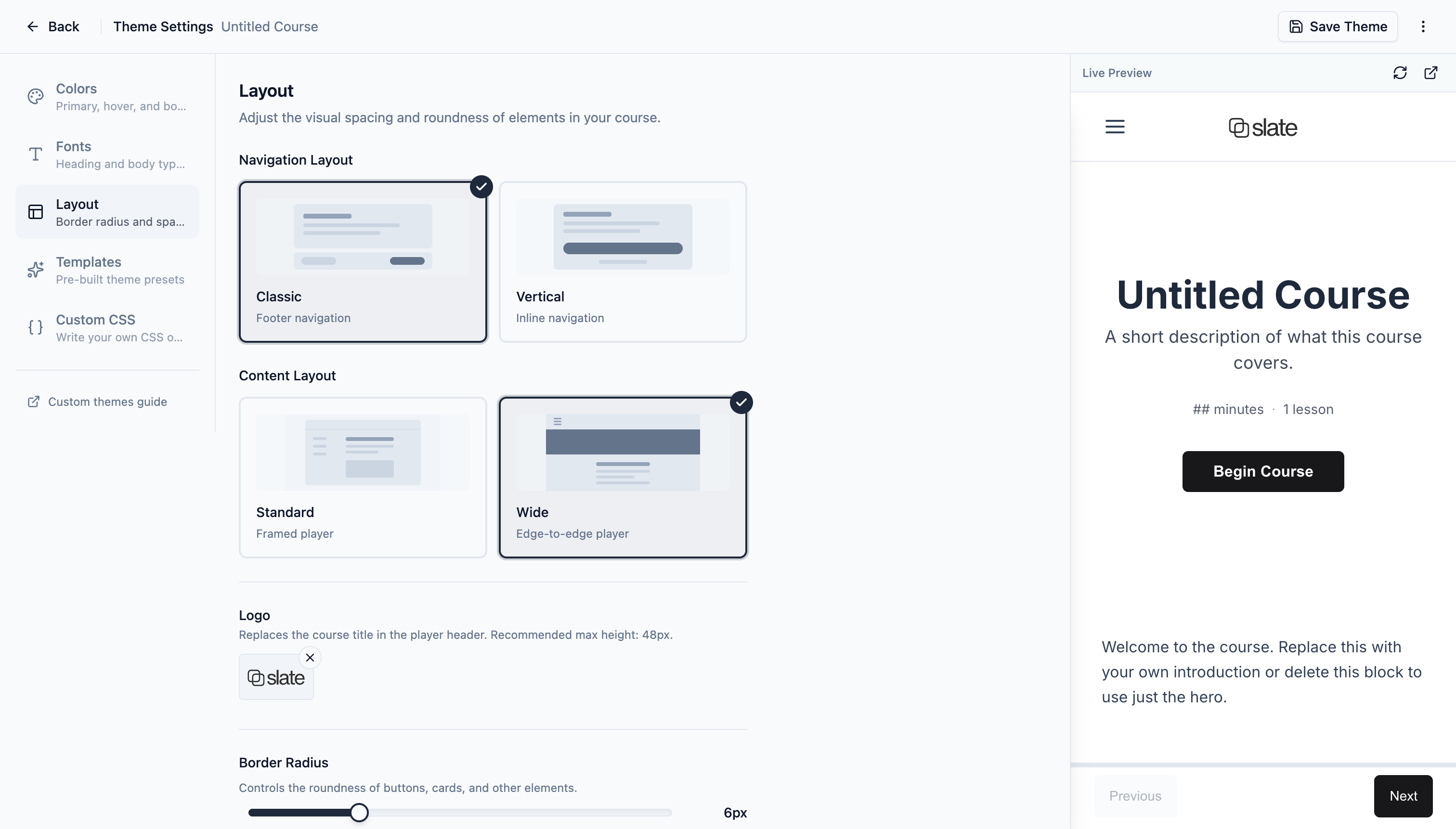
A new Themes option for course authors who want their courses to feel more editorial. Wide content layout keeps body text in a comfortable reading column while letting images, videos, tables, and multi-column layouts use the full width of the player. The layout also ships with an edge-to-edge player chrome and a hamburger-menu sidebar so the whole course reads less like a slide deck and more like a modern web article.
Pick it from Theme settings; works alongside custom fonts, theme presets, and per-block backgrounds. Available on all plans.
Also shipped this month
- Simplified block toolbar: a quieter edit surface with move, duplicate, and delete inline; the rest tucked behind a single overflow menu.
- Per-block backgrounds: a solid colour or image background on any block, rendered edge-to-edge in the player while text stays in the reading column.
- Upload from the Media Library picker: upload images, audio, and documents straight from the picker without leaving the block you are editing.
- Masonry layouts: two- and three-column masonry options for image galleries, quote walls, and card decks.
- Default authoring language: set a preferred course language once in Settings; new courses, AI Chat, and AI-generated content all default to it.
- Convert courses back to Markdown: turn any course into a plain-text LESSON.md file via
lesson.md/convert/, useful for backups, version control, and editing courses with AI tools outside the builder. - Flip card carousel: a new block that combines carousel navigation with per-card flip, so each card has its own front and back.
- Voice input for AI Chat: dictate prompts in AI Chat and the lesson generator, with a live waveform and transcript while you speak.
- Publish to all preview and review links: refresh every out-of-date preview or review link with a single action.
- QR codes for preview and review links: generate a QR code for any preview or review link, ideal for presentations and in-person training.
- Course outro: a customizable completion page after assessments for a summary, next steps, or a closing message.
- Expanded voice library: more narration voices, with inline audio previews and language filtering.
- Exit Course button: optional sidebar button that saves progress, terminates the SCORM session, and returns the learner to their LMS.
One more thing: Slate for Canva
Update, August 2026: Slate for Canva is now available in the Canva Apps Marketplace. Convert a Canva presentation into an interactive SCORM course, then refine and publish it in Slate.
Where to go next
A snapshot of what we're working on next lives on the roadmap, and feature requests are always welcome on the feedback page.