Export your course library as a CSV
How many courses does your team actually have published? Which ones haven't been updated in over a year? What languages are covered? These are simple questions, but getting answers usually means clicking through courses one at a time or maintaining a separate spreadsheet or inventory system that's already out of date.
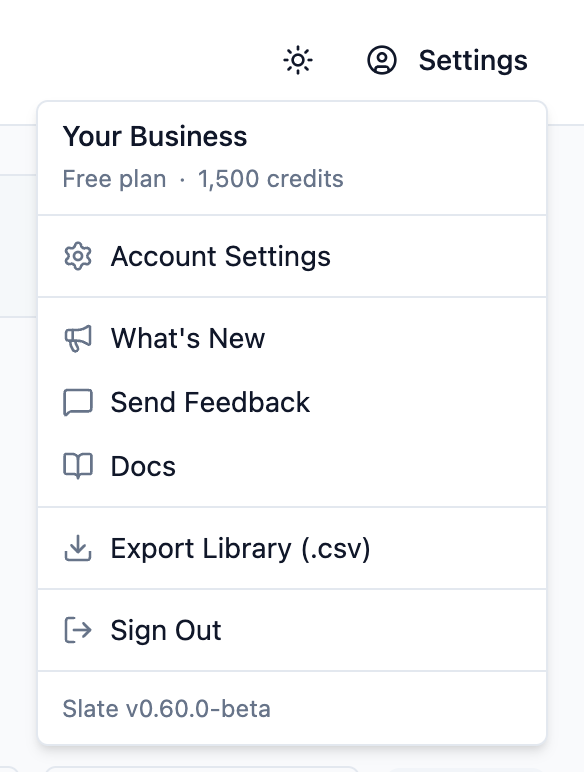
The dashboard settings menu now includes an Export Library option. One click downloads your full library metadata as a CSV file, ready to open in Excel, Google Sheets, or Numbers.
What's in the file
Each row is one course. The columns cover:
- Title and Course ID: the anchors for cross-referencing with your LMS records
- Description: as written in course settings
- Status: published or draft, so you know what's live
- Language: essential for multilingual libraries
- Sections and Lessons: counts for a quick sense of scope
- Tags: showing how your library is categorized
- Archived: yes or no, to account for retired content separately
- Created and Last Edited: dates for maintenance planning
Use cases for learning teams
Course maintenance planning
Sort the Last Edited column and you immediately have a prioritized maintenance backlog. Combine that with the Status column to find courses that are published but haven't been touched in over a year. These are the ones most likely to contain outdated information, broken links, or terminology that no longer matches how your organization talks about a topic.
Content audits and reporting
At the end of a quarter or before a program review, the CSV gives you an accurate, complete inventory to share with stakeholders, HR, or compliance teams. No screenshots, no manual counting. Paste it into a report and the numbers are already there.
Grounding an AI conversation
Upload the CSV to Claude, ChatGPT, Gemini, or another AI assistant and ask questions across your entire library at once: "Which compliance courses haven't been updated since 2024?", "How many courses do we have in French?", "What's our coverage of onboarding content?" The AI can reason across all the columns simultaneously, which is faster than filtering the dashboard manually when you're working through a curriculum gap analysis or planning a new program.
For course authors on Standard or Pro plans, the MCP connector offers a live version of this: querying your library directly through Claude without needing to export first. The CSV is the version that works for everyone, with no setup required, and with any AI tool you already use.
How to export
Open the Slate dashboard, click the settings icon in the header, and select Export Library (.csv). The file downloads immediately. The export covers up to 1,000 courses and is available on all plans, including Free.
If you're already using Slate, the export option is live in your dashboard today. If you're not yet on Slate, sign up free to start building your library.