Create eLearning Courses with Claude, ChatGPT, and AI Assistants Using MCP
Updated February 2, 2026: Added presentation export for Canva.
You're chatting with Claude or ChatGPT, describing the training course you need. The AI gives you a detailed outline, lesson content, and even quiz questions. Great. Now you need to copy all of that into your authoring tool, format it, add interactions, and hope nothing gets lost in translation.
What if the AI could just... build the course directly?
That's now possible with Slate's MCP connector.
What is MCP?
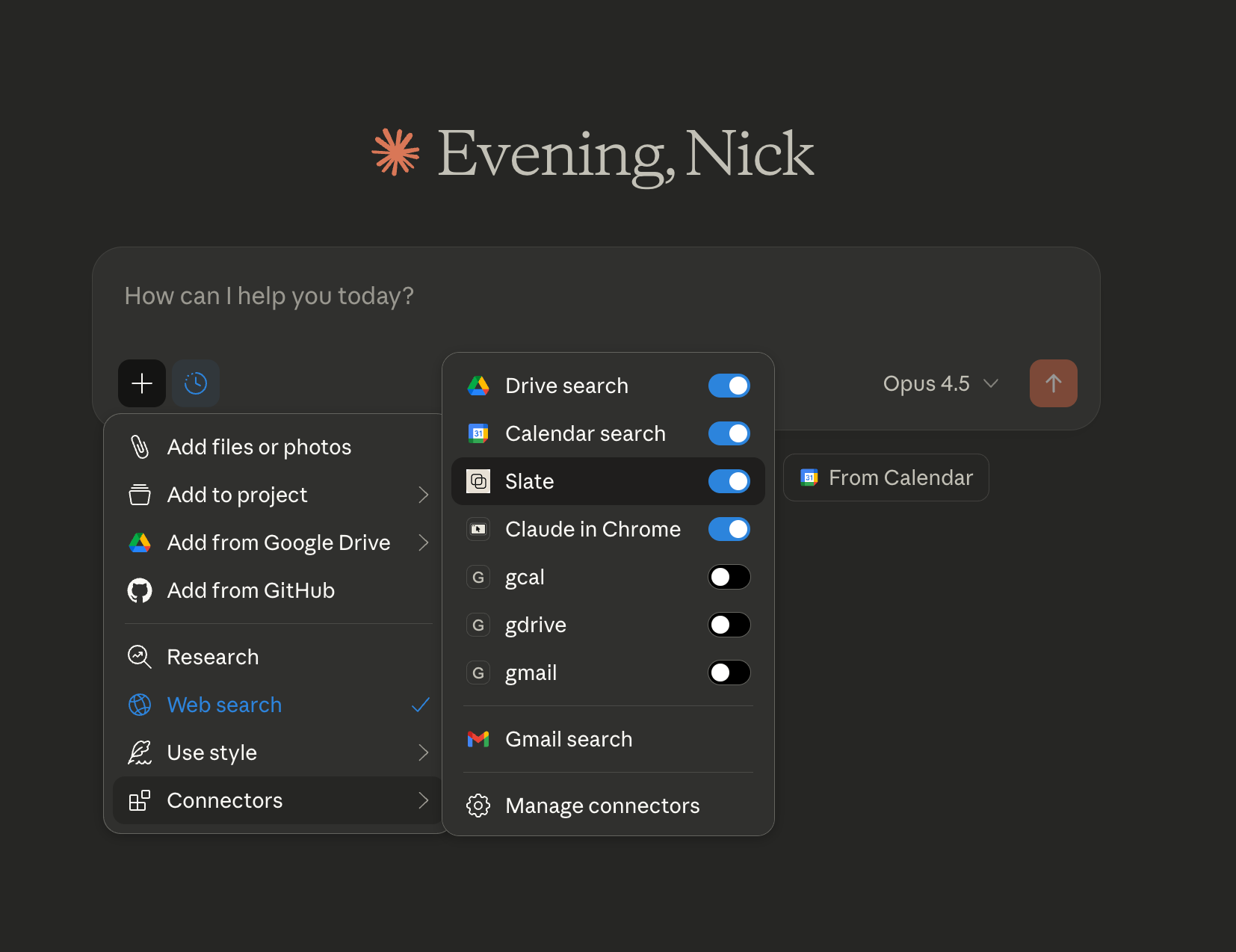
Model Context Protocol (MCP) is an open standard that lets AI assistants connect to external tools and services. Think of it as a universal adapter—instead of building separate integrations for every AI and every tool, MCP provides a common language they can all speak.
For course authors, this means your AI assistant can directly interact with Slate: creating courses, previewing outlines, applying themes, and managing your content library.
What You Can Do
With the Slate MCP connector, your AI assistant can:
- Generate courses: Describe what you need and the AI generates sections, lessons, text content, images, knowledge checks, and assessments
- Preview outlines first: See the proposed course structure before committing any credits
- Apply your brand: Automatically use your saved default theme on generated courses
- List and filter courses: View your courses, filter by tags ("show me courses tagged as compliance"), and get direct links to open them in the Slate editor
- Get course details: Retrieve summaries and information about any course by title or ID
- Share preview links: Create a public preview URL so stakeholders can view a live course without an LMS or a Slate account
- Check your balance: See your available credits before generating
The AI handles the back-and-forth of gathering requirements. It asks about your audience, learning objectives, duration, and any specific content you want included. Then it builds the course in Slate directly.
Pro Features
Pro subscribers get additional MCP tools for managing reviews and organizing courses:
Review Management
- List reviews: View all reviews for a course with issue counts, resolution status, and shareable reviewer links
- Open and close reviews: Create new review sessions with optional snapshots, generate invite links for external reviewers, and close sessions with final statistics
- Summarize feedback: Generate AI-powered prose summaries of all review feedback
- Review checklists: View, generate, or update task checklists from review feedback
Tag Management
- Add and remove tags: Organize courses with tags for easy filtering and discovery
- Bulk operations: Add or remove tags from multiple courses at once by title or ID
Cross-App
- Presentation export: Extract course content formatted for Canva (verified) or other AI tools that support presentation creation via MCP
Turn web-based training into instructor-led materials in minutes. Ask Claude to pull your Slate course content and create a presentation in Canva—complete with speaker notes for each slide. Your Slate theme colours carry over automatically, or use Canva's brand kits for consistency across your organization. It's the fastest way to go from WBT to ILT without recreating content from scratch.
API Rate Limits
MCP request limits vary by subscription tier:
| Plan | Per min | Per hour | Per day |
|---|---|---|---|
| Standard | 10 | 60 | 150 |
| Pro | 20 | 120 | 300 |
Limits reset automatically. Upgrade your plan for higher limits and Pro-exclusive tools.
Supported AI Assistants
MCP is supported by a growing number of AI tools:
- Claude Desktop - Available now
- Claude Code - Available now
- ChatGPT - Coming soon (we're building a ChatGPT app for seamless setup)
As more AI assistants adopt MCP, they'll automatically work with Slate's connector.
Getting Started
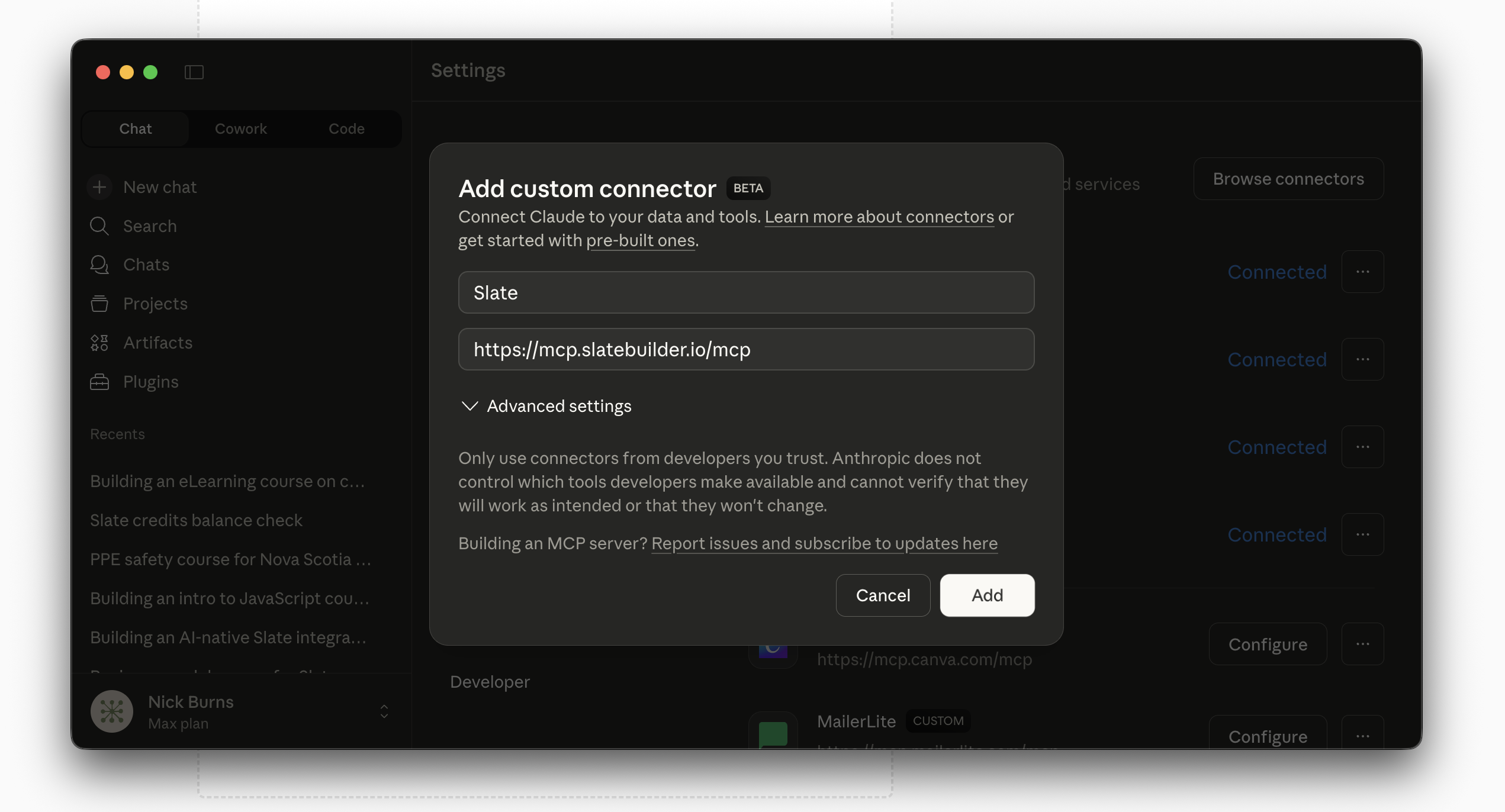
Setup takes about two minutes:
- Open your AI assistant's settings and add the Slate MCP server URL
- Restart your assistant to connect
- Authorize through Slate's OAuth flow on first use
- Start a conversation and ask it to create a course
Detailed setup instructions for each supported assistant are on the MCP setup page.
Use Cases
The MCP connector works well for:
- Rapid prototyping - Quickly generate course structures to share with stakeholders
- Corporate training teams - Describe compliance or onboarding needs and get a draft course in minutes
- Instructional designers - Use AI as a first-pass content generator, then refine in the Slate editor
- Meeting notes to courses - Paste your meeting notes into the conversation and ask the AI to build a course from the key points
- Consultants and agencies - Convert client presentations and documents into interactive eLearning courses through conversation
Early Access
The MCP connector is currently in Early Access. It's available to Standard and Pro subscribers. We're actively improving it based on feedback, so if you run into issues or have suggestions, let us know.
Try It Now
Ready to connect your AI assistant to Slate? Head to the MCP setup page to get started. MCP is available on Standard and Pro plans.