Brand Your eLearning Courses: A Complete Guide to Theming in Slate
Updated February 8, 2026: Added theme export/import, vertical navigation layout, custom font uploads, and 8 new Google Fonts.
You've built a great course. The content is solid, the assessments are fair, and your learners will actually enjoy going through it. But here's a question: does it look like your organization made it?
Generic-looking courses are a missed opportunity. Your training should reinforce your brand at every touchpoint—from the colours and fonts to your logo in the header. When learners open your course, they should instantly recognize it as yours.
That's where Slate's theming system comes in.
Brand Every Detail
Slate gives you complete control over how your courses look, without requiring design skills or custom development. Everything updates in real-time with a live preview, and your theme carries through to every export format: SCORM and HTML packages.
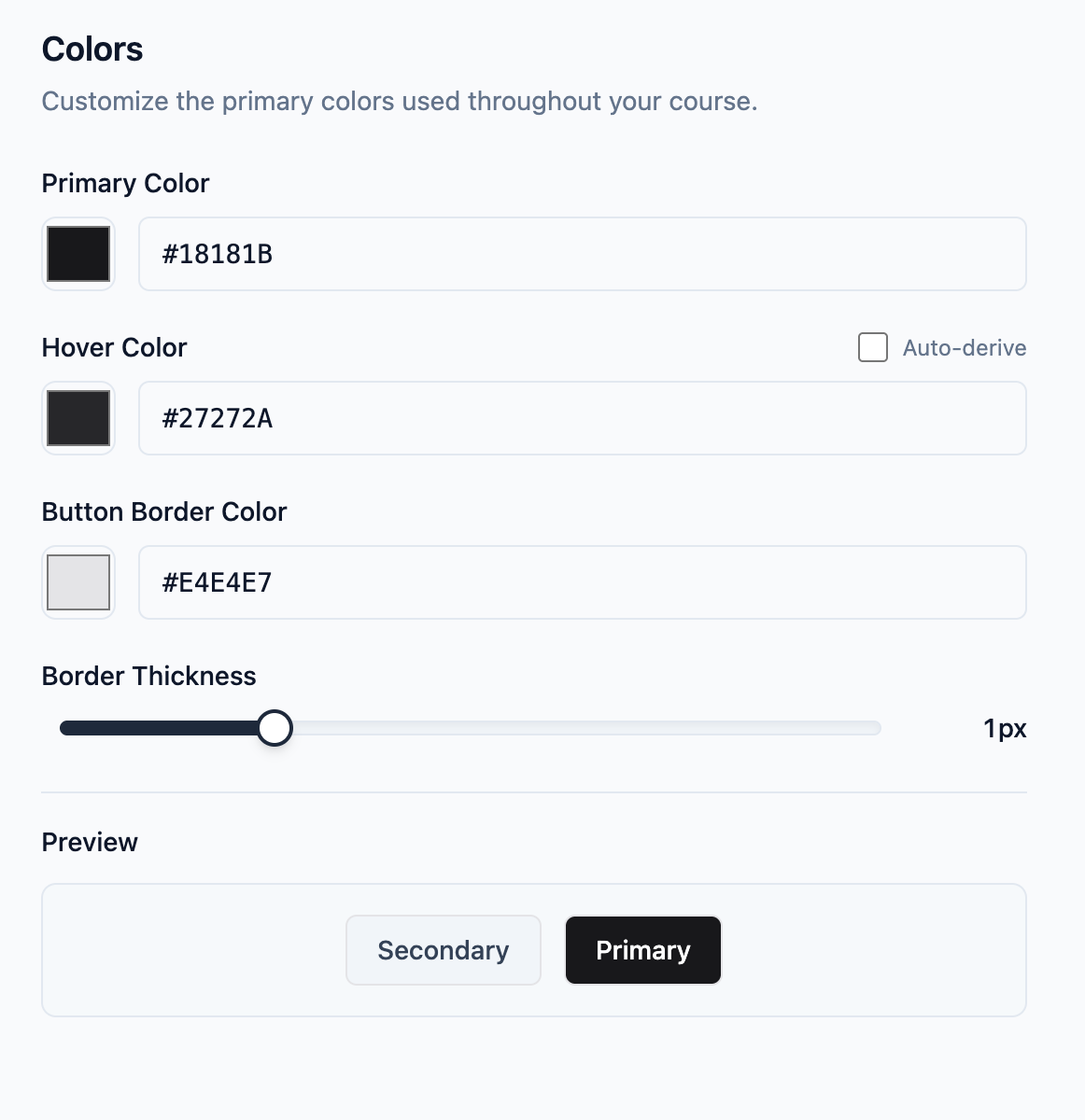
Here's what you can customize:
- Brand colours: Primary accent colour for buttons, links, and interactive elements. Hover states can be set automatically or customized manually.
- Typography: Choose from 30 built-in Google Fonts for headings and body text, with multiple weight options from Regular to Extra-Bold. Need your exact brand font? Upload custom font files (.woff2, .woff, .ttf, .otf) for complete typographic control.
- Your logo: Add your company logo to the course player header. It appears on every page of your course.
- Layout options: Adjust border radius and spacing to match your design system.
Adding Your Logo
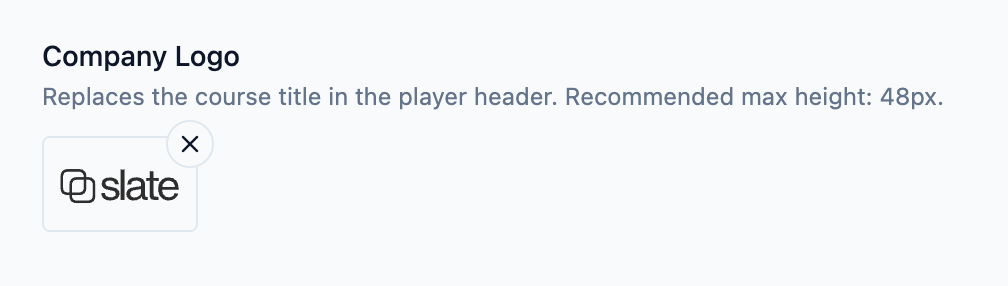
Your logo appears in the course player header, giving learners immediate brand recognition. To add it:
- Open your course and click the Theme button
- Select the Layout tab in the sidebar
- Click Upload Logo and select your image
- Your logo appears instantly in the preview
The logo works in all exports with no extra configuration needed.
Navigation layout
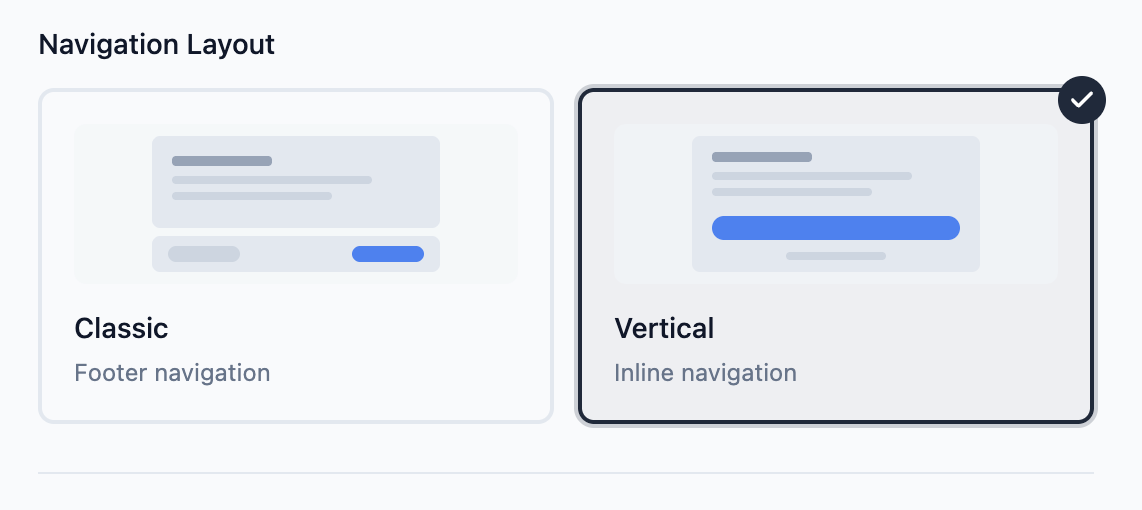
Slate offers two navigation layouts you can set in the Theme page under Layout:
- Classic: The default sidebar navigation with a table of contents. Learners click through lessons in the sidebar.
- Vertical: A continuous, single-page scrolling experience. Each lesson flows into the next with an up-next card at the bottom, a previous lesson breadcrumb at the top, and a thin progress bar below the header. The table of contents sidebar is still available.
The vertical layout works well for shorter, linear courses where you want learners to move through content in sequence without navigating a menu. The classic layout is better for longer courses where learners need to jump between sections.
Your navigation layout choice is part of the theme, so it carries through to exports and is included when you save or export your theme.
Save and Reuse Theme Presets
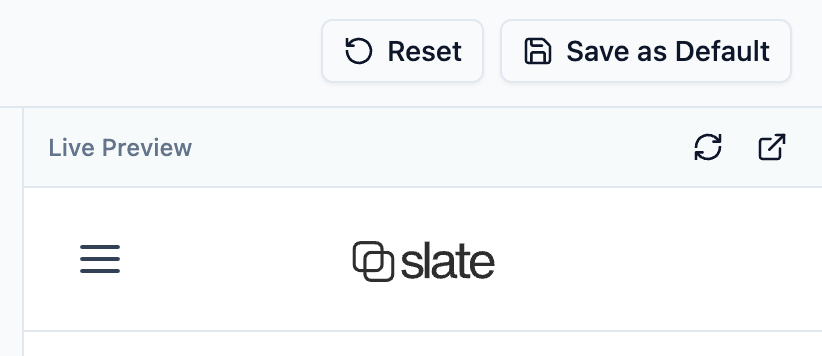
Setting up your brand once is great. Saving it as a named preset and applying it to any course in two clicks? Even better.
Theme presets let you save your complete theme configuration—colours, fonts, layout, behavioural settings, custom CSS, and logo—as a reusable preset. Give it a name, and it's available across all your courses.
Here's how it works:
- Configure your theme exactly how you want it
- Click Save Theme in the header and give it a name
- Apply it to any course from the My Presets menu
You can also mark a preset as your default by clicking the star icon—every new course you create will start with that preset applied, including courses generated through AI Course Chat. Free accounts get 1 saved preset; Standard and Pro plans get up to 10.
Need to update a preset? Just tweak the settings and click Update next to the preset name. Manage all your presets—rename, delete, export, or set defaults—from the Manage Presets dialog.
Export and import themes
Need to apply the same theme across multiple courses, or share your brand settings with a colleague? Slate lets you export your theme as a JSON file and import it into any other course.
The exported file includes everything: colours, fonts (including custom font selections), border radius, spacing, navigation layout, behavioural settings, and custom CSS. To use it:
- Open the Theme page on a course with the theme you want to share
- Click Export Theme from the menu to download a JSON file
- Open the Theme page on another course
- Click Import Theme from the menu and select the file
- Choose to apply it directly or save it as a preset for reuse
This is particularly useful for teams and agencies managing course libraries where every course needs to follow the same brand guidelines. Export once, import everywhere—or save the import as a preset so the whole team can access it.
Quick Start with Templates
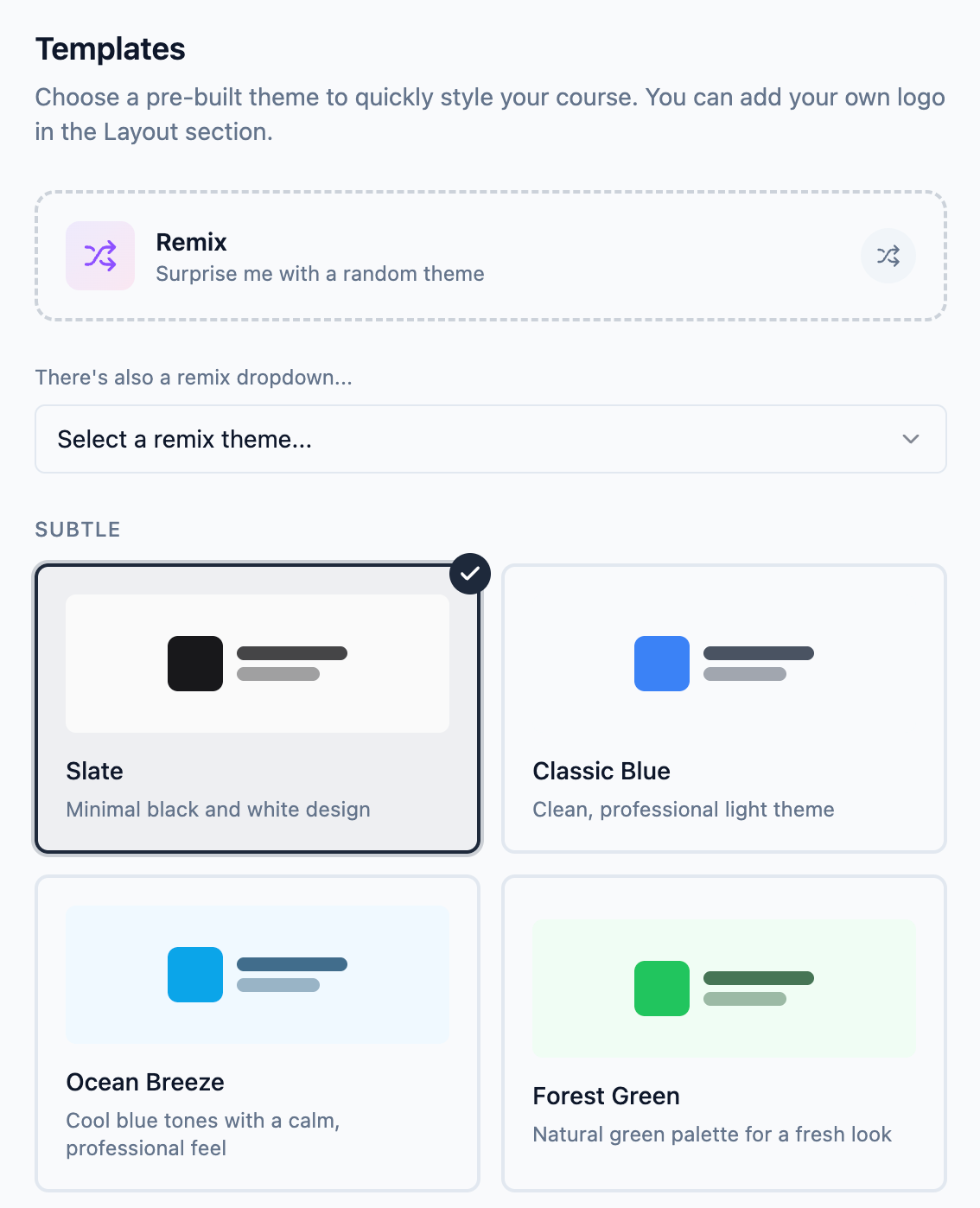
Not sure where to start? Slate includes pre-built templates to give you a foundation:
- Subtle templates: Adjust colours and layout without custom CSS. Options include Ocean Breeze, Forest Green, and Sunset Orange.
- Bold templates: Full dark mode themes with custom styling, like Midnight Aurora and Classic Dark.
- Remix: Feeling adventurous? The Remix button applies a random theme combination for creative exploration.
Pick a template that's close to what you want, then fine-tune the colours and fonts to match your brand exactly.
Who This Is For
Theming in Slate works for a variety of use cases:
- Corporate L&D teams: Ensure all internal training matches your company's visual identity
- Small businesses: Create professional-looking training without a design team
- Consultants: Build branded courses for your clients, whether you're in leadership coaching, business strategy, or specialized training
- Product teams: Build customer education that looks like an extension of your product
- Agencies: Deliver polished, white-label courses to clients with their branding front and centre
Try It Yourself
Ready to brand your courses? Sign up free and open the Theme page on any course. Your brand identity is just a few clicks away.
For power users who want even more control, Slate also supports custom CSS for pixel-perfect styling on Standard and Pro—but most organizations find the built-in Theme Settings more than sufficient.